New text editor!
You might not have noticed, but we recently switched out our text editor! The text editor is what you use to create any rich text content on Threadloop. For example a comment on someone's pattern list, or an entry in your project journal. Basically anywhere you can format your text (bold, italic, bullet points, headings..) or add inline images.
The editor we were using was not being maintained properly anymore, and it was difficult to extend with our own features. The new editor is in active development, and is easier to build things on top of. It also produces much better semantic HTML, making it more accessible for screen readers.
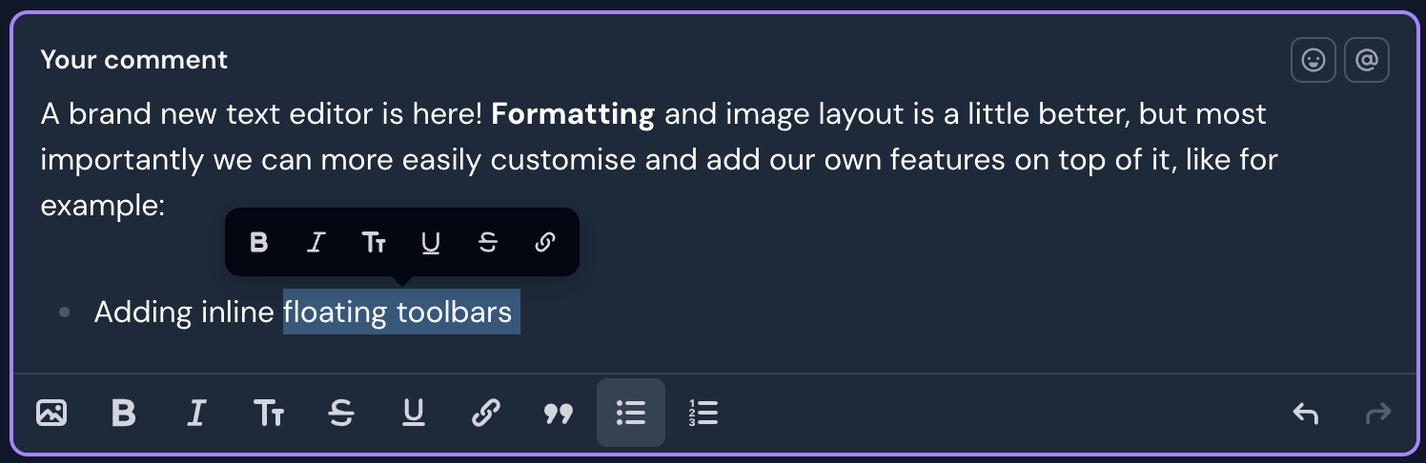
Some of the main usability improvements are:
Auto-formatting on paste
When you paste a link into the text field, it will automatically create a clickable link. If you paste a Youtube link, this will automatically embed the video. Previously, you'd have to manually link this up yourself. Bonus: if you select some text and paste (cmd+v/ctrl+v) a link you've copied, this will create a link on the selected text!
Support for markdown
If you want to, you can now use markdown to format your text. If you're used to typing in markdown, this might make the process of writing a journal entry a bit more delightful, for example!
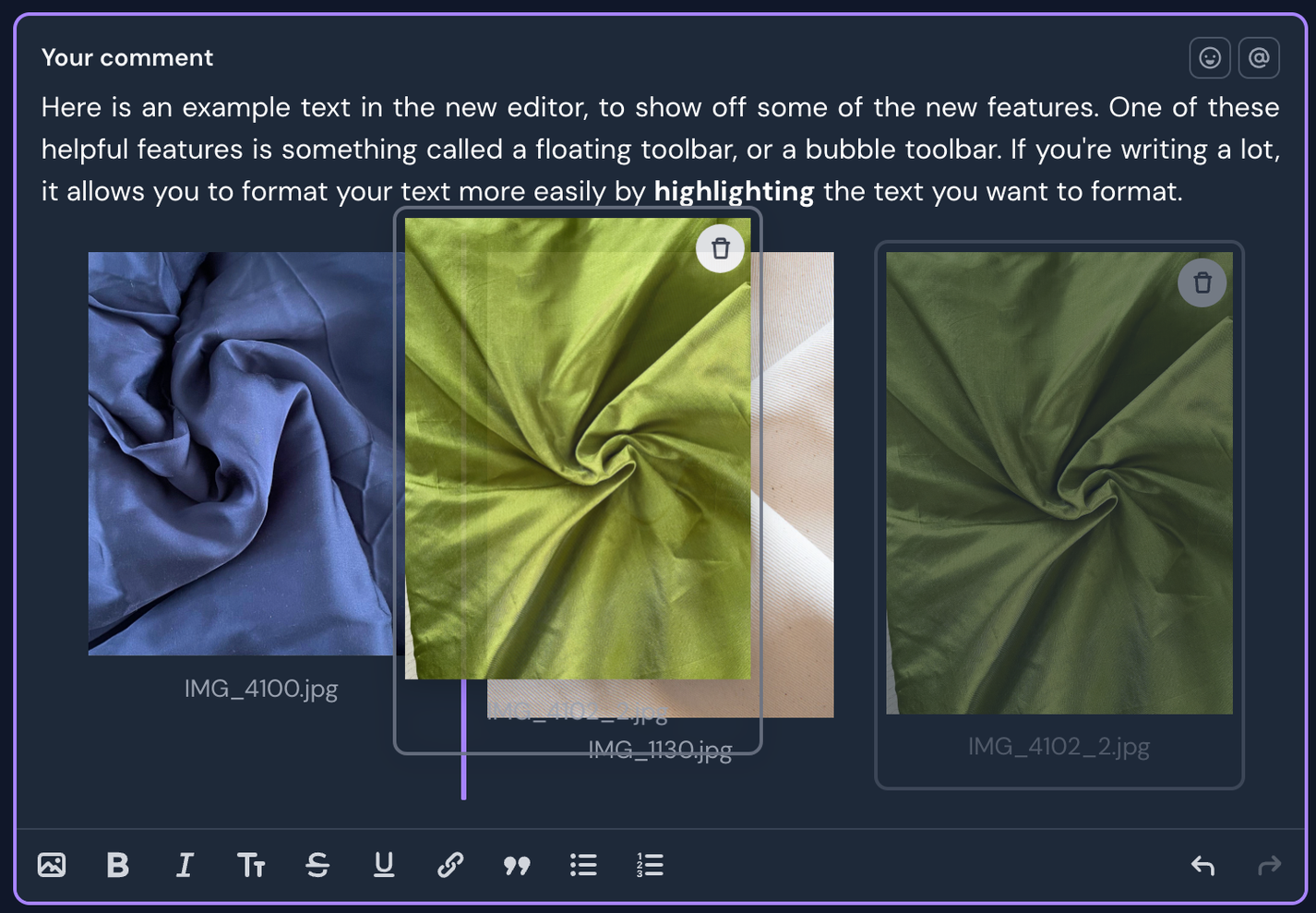
Better image layout
First off: we've added a new button to upload images and it's the first one in the toolbar, indicated by a landscape image icon (instead of a paperclip like before - which was a bit confusing!).
Other improvements: a single image is constrained to a max size so it doesn't fill the entire screen (previously we made everything full width, which resulted in very tall images sometimes). Also, you can more easily rearrange your photos and get the layout you want. On desktop, you can get the cursor between each image so you can more easily insert a break or drag and drop images to rearrange them. On mobile, you should be able to rearrange photos by holding and dragging an image.
Now over to the customised tools we've added on top of this new editor!
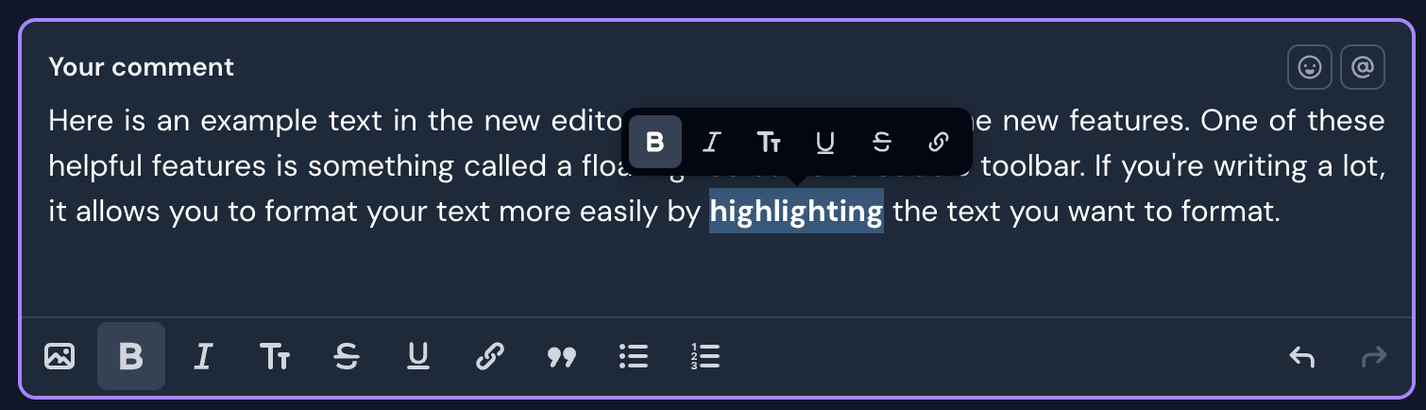
Floating bubble toolbar
If you're typing a lot, it's easy to loose track of the toolbar at the bottom of the text field. To make it easier to make adjustments anywhere in the text, we've customised the text editor and added a floating bubble toolbar on desktop when you highlight text. This allows you to quickly add formatting wherever you are in the text. For example, to add a bold or italic styling, or add a link to your selected text.
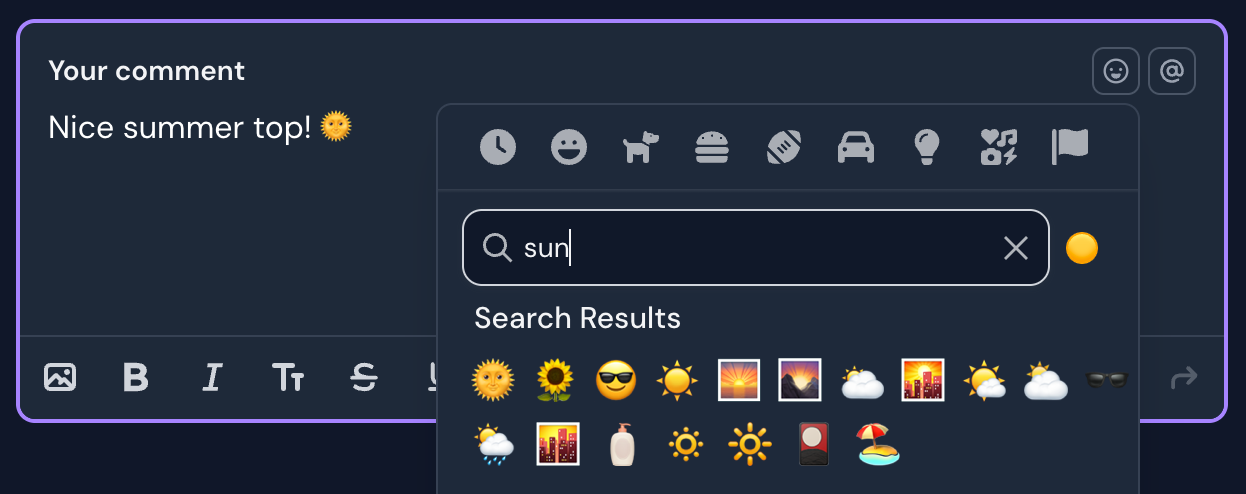
Emoji button
On desktop, we've added an emoji button so you can easily find emojis you want to add to your text. It's in the top right corner, right next to the mention button (which allows you to easily mention other members, patterns or designers). You can use the search to find a suitable emoji.
That's all?
Yes - pretty much! There might be some bugs or unexpected weirdness after this change, but we will fix things as we go, and hopefully add even more helpful features to our new text editor in the future. Please let us know if you experience any weirdness, or if you have any ideas to how we can improve it further.