There are two main ways you can organise your projects on Threadloop - using the sorted view or, if you are a Plus member, the collections view. Each view has different features.
Sorted
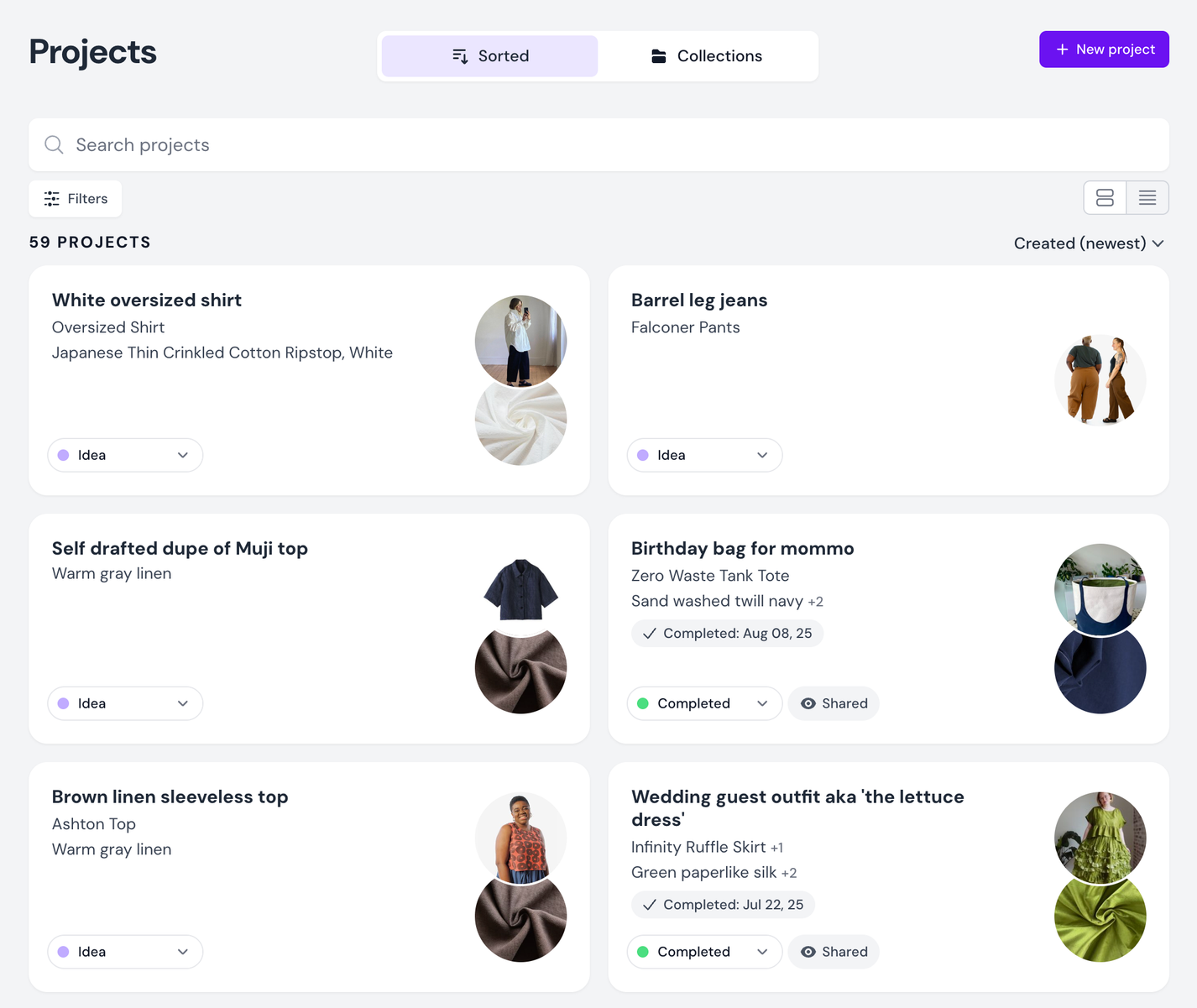
This is the default and free option available to all members. It's basically a list of all the projects you've created, that you can sort and filter the way you like.
Sorted view
Sort You have quite a few options when it comes to sorting your projects - by when it's created, updated, started or completed, by the status, or by upcoming deadlines. Filters Use filters to only see the types of projects you are currently interested in. You can filter by status, pattern types, tags, who the project is made for, and whether or not the project is shared or public. If there is some parameter not captured by these filters, consider creating and using tags.
Collections
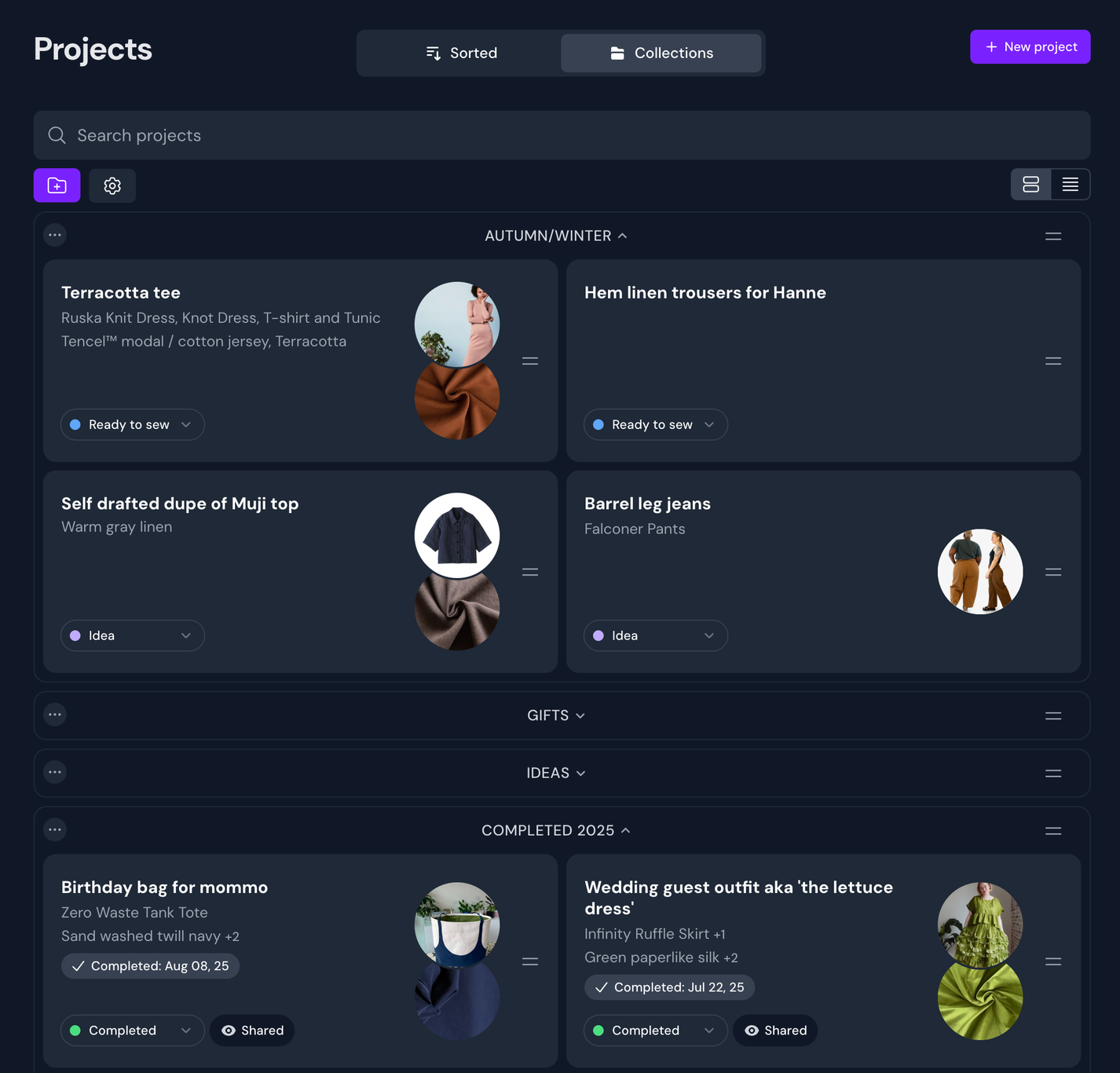
Collections allows you to organise your projects in the way that makes most sense to you. You are free to create collections (think of them like folders) for your different project ideas, and you can drag and drop the order of your projects to prioritise them more easily.
✨ Note: Collections is a Plus feature - which means it's only available to Plus members. You can read more about collections and other features you get with Plus here.
Below is an example, where there are four different collections; autumn/winter, gifts, ideas and completed 2025.
An example of collections and project within them
Collections can be any grouping you like - seasonal (Autumn), themed around events (Japan trip), a workflow status (Ideas, Completed 2025), or who it's for (Gifts). You can explore different options here and figure out what works best for you. Projects can be easily moved between collections using drag-and-drop, so it is particularly effective at more ephemeral uses where a project may move around.
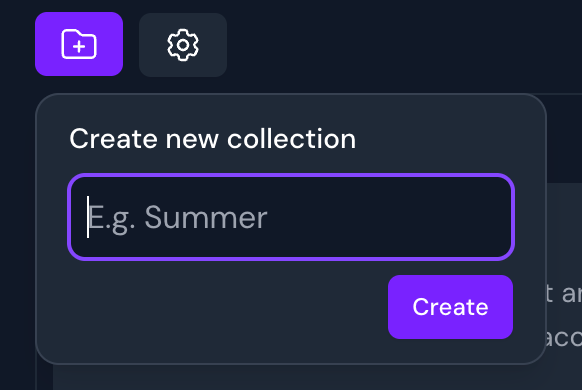
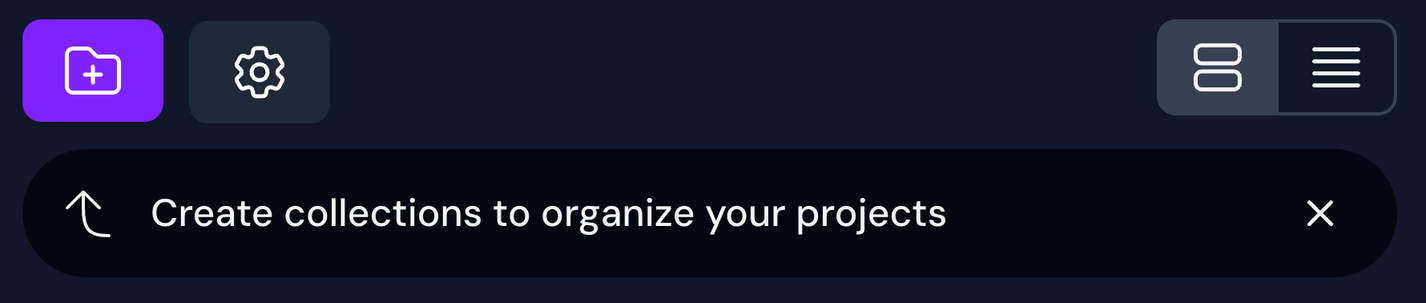
Create collections Click the purple button with the folder icon in the top left corner to create a collection. Give it a name and click Create.
Creating a collection
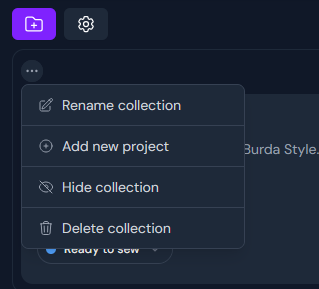
Editing a collection
You can then start adding projects to your collection, either by dragging existing projects into it, or by creating new projects from that collection by clicking the options button (three dots) in the corner.
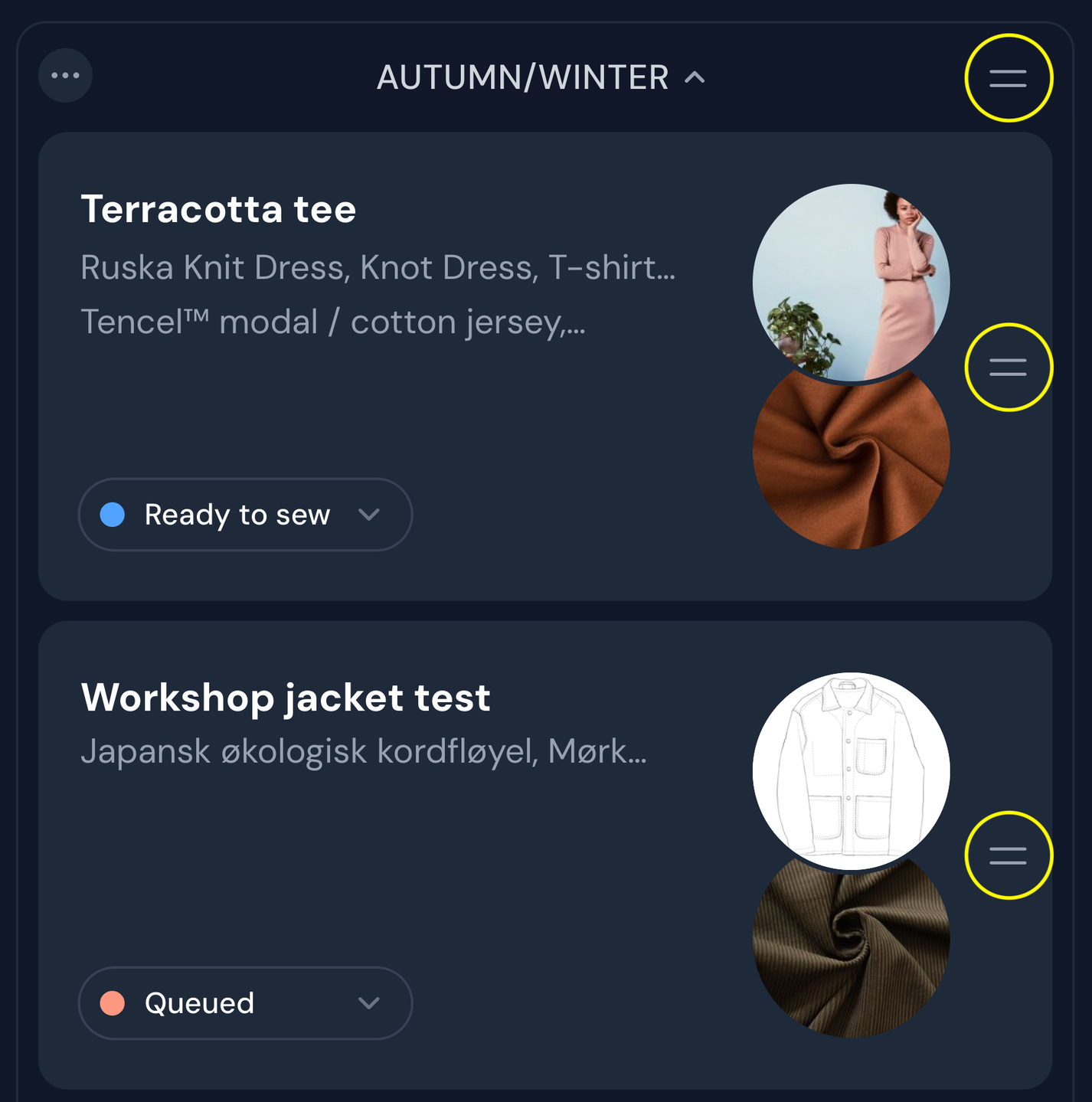
Drag and drop To move things around, you need to use the handles on the sides. These look like two lines on top of each other, and lets you move both projects and collections.
Drag handles circled in yellow
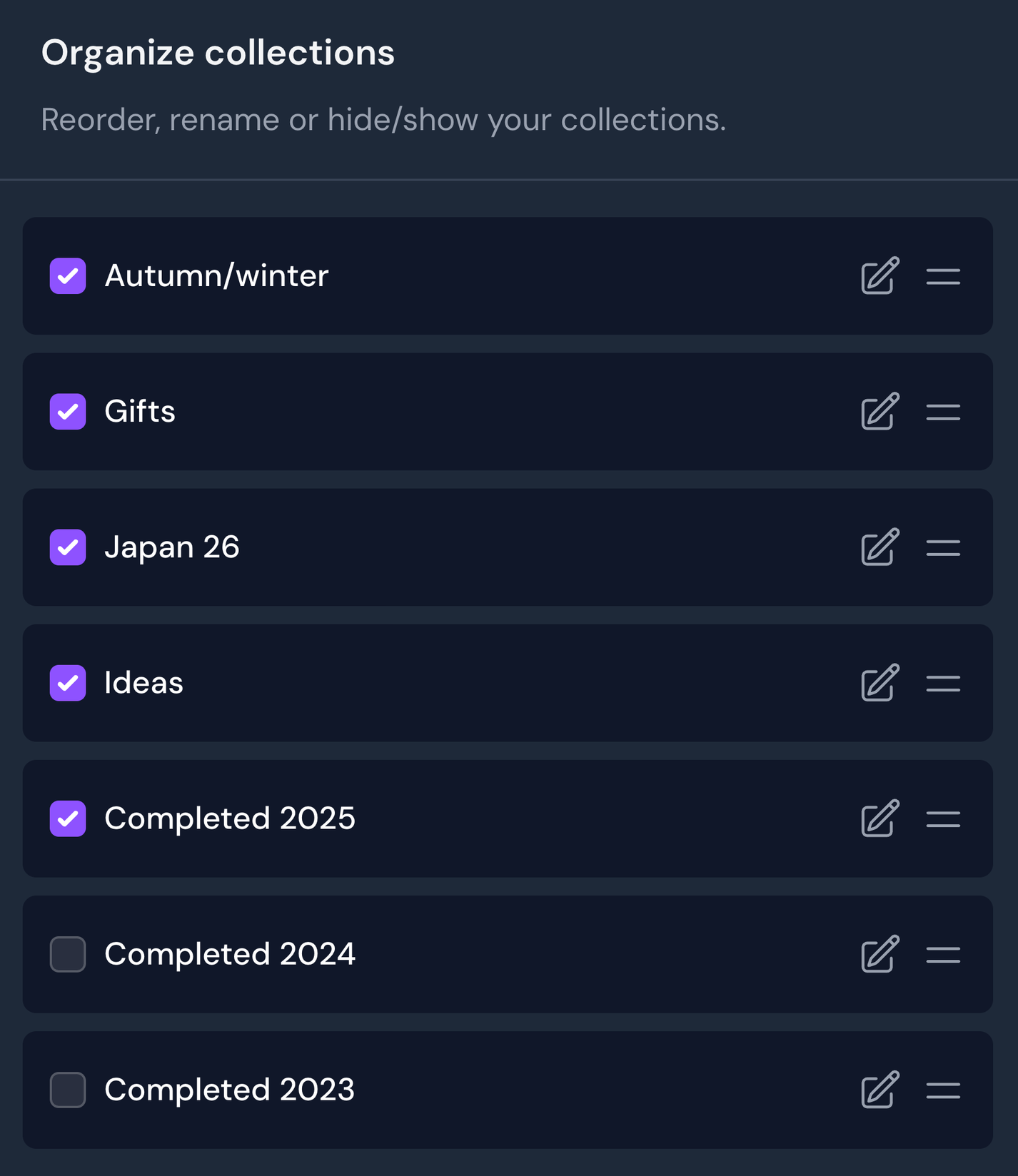
Organising collections In addition editing individual collections, you can enter Collection settings using the settings (cog) button to manage them all at once. Here you can re-order, rename and hide collections.
Folder icon: create new collections. Cog icon: collection settings
To hide collections from view, check the box on the left. Hidden collections won't appear on your Projects View, but the projects are still safely retained within.
Hiding collections 'completed 2024' and 'completed 2023'