Pattern lists are collections of sewing patterns that share common characteristics or match specific criteria or themes. They should go beyond the standard filter and sort capabilities of our database.
Meaning, you should not create lists of patterns that can be easily found by using the filters in the pattern database, for example: "Overalls for kids".
Good lists help others discover patterns they might not have found otherwise, or see patterns grouped in ways the filters don't allow.
Exploring pattern lists
Browsing through the pattern lists is similar to exploring the pattern database or shared projects - you have a lot of search, filter and sort options! You can find pattern lists under the Explore menu
You can do free text searches to find lists that match a theme you're looking for (e.g. "Wedding", "Japanese", "Alternative", "Comfortable", "Sci-fi") or fabric attributes (e.g. "Knit", "Denim", "Flowy").
Filters
Type: Choose if you want to see all pattern lists, or just one of the types - editorial or collaborative.
Members: with this filter, you can choose which members' lists you want to see.
Members I follow: toggle to only see lists by members you follow on Threadloop.
Featured: toggle to see only featured lists.
Bookmarked: toggle tosee lists you've bookmarked.
My lists: toggle to only see your own lists.
Sorting You can sort pattern lists by:
Updated (newest/oldest)
Created (newest/oldest)
Shared (newest/oldest)
Most liked
Filtering patterns within a list
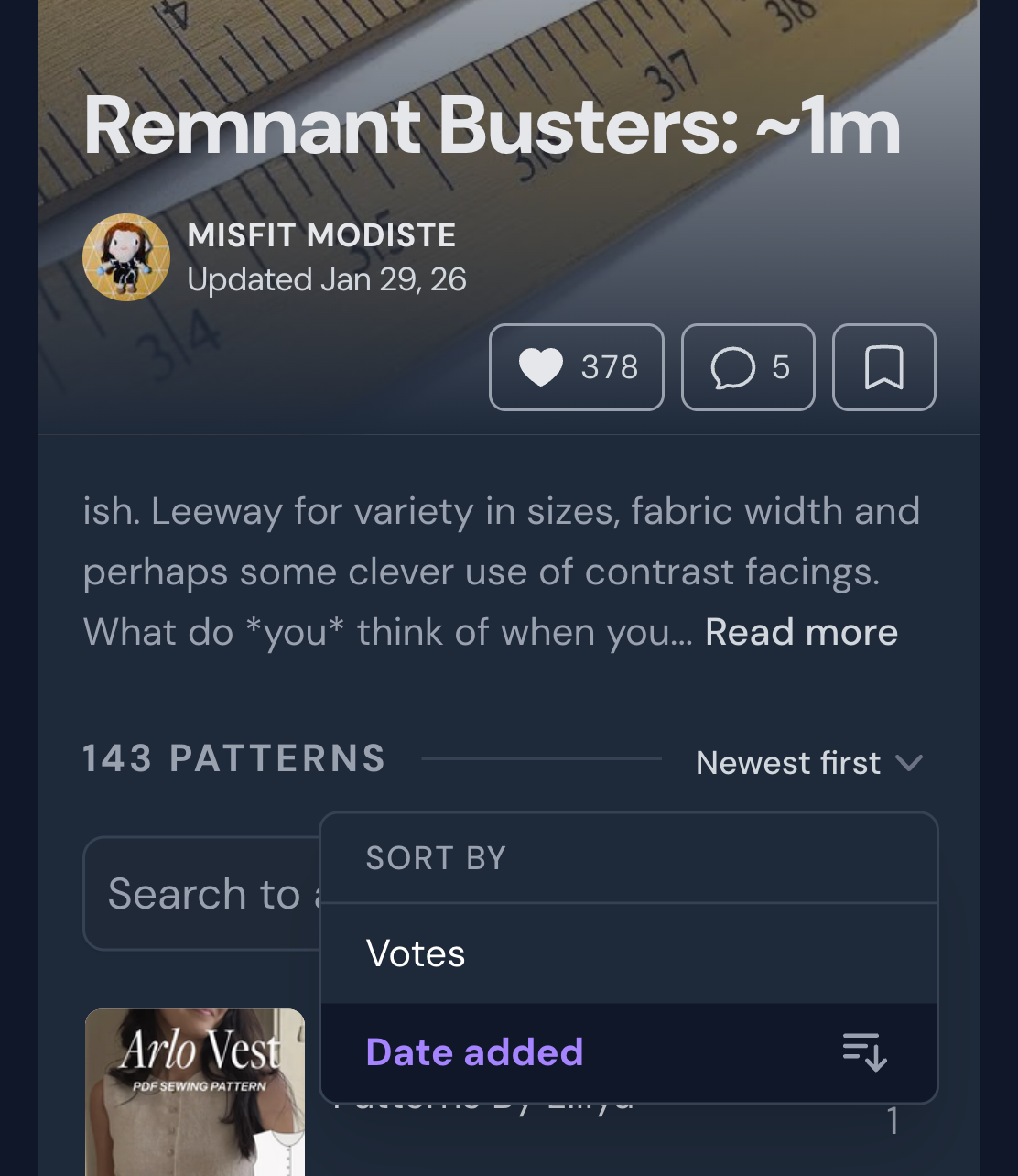
The patterns within a collaborative list can be sorted by number of votes and when it was added to the list. If you want to check one of your favorite lists for new additions, you can sort by Date added: Newest first. The default is most votes.
Sorting a collaborative pattern list
What about filters? Search? When you're looking at a pattern lists, you might want to narrow down to a more specific collection of patterns. For example, you might want to see only tops for adults in a pattern list for Remnant Busters.
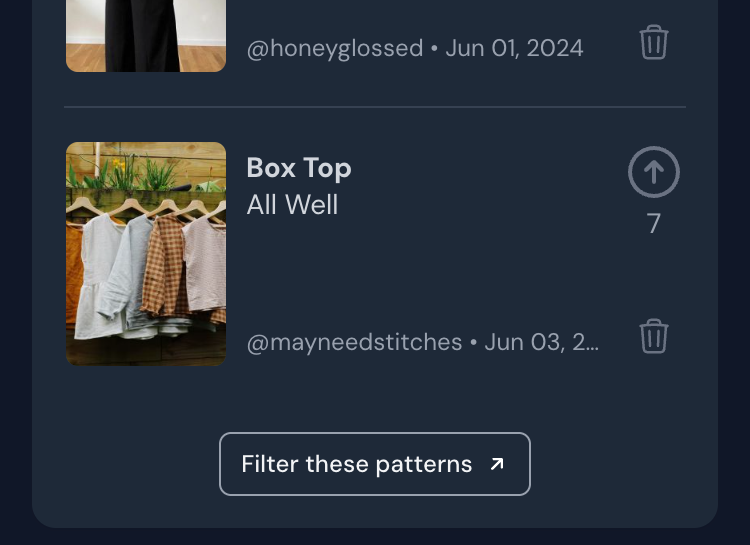
To do this, you can scroll down to the bottom of the list to find the Filter these patterns-button.
Filter these patterns-button at bottom of list
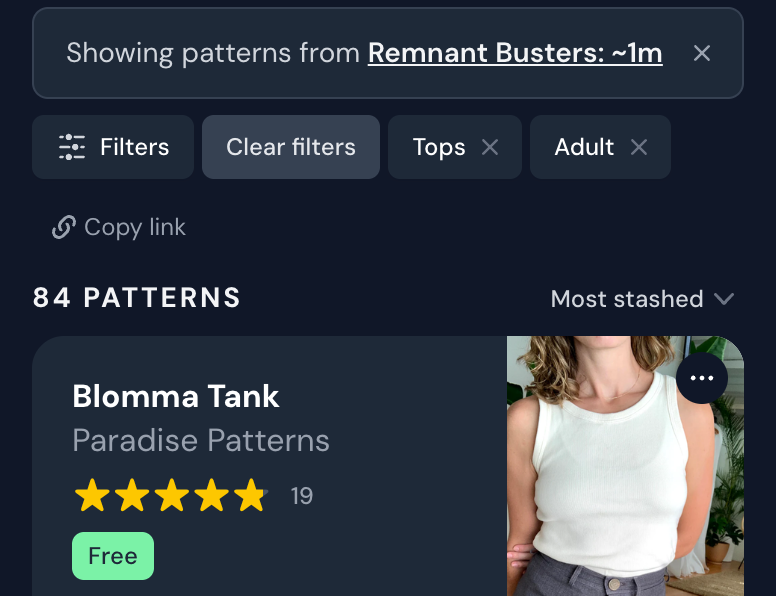
You will then see a filtered view of the pattern database showing just the patterns from the list. To further narrow down your results, you can use all the powerful filters in the database. For example, here is that same list as before, filtered to only show: Pattern type -> Tops Age group -> Adult
Patterns filtered by pattern list + Tops + Adult
That narrowed down the list from 143 patterns to 84! Using the database filters on top of a pattern list selection is a really powerful way to combine a human vetted selection with your own preferences.
Guidelines for public lists
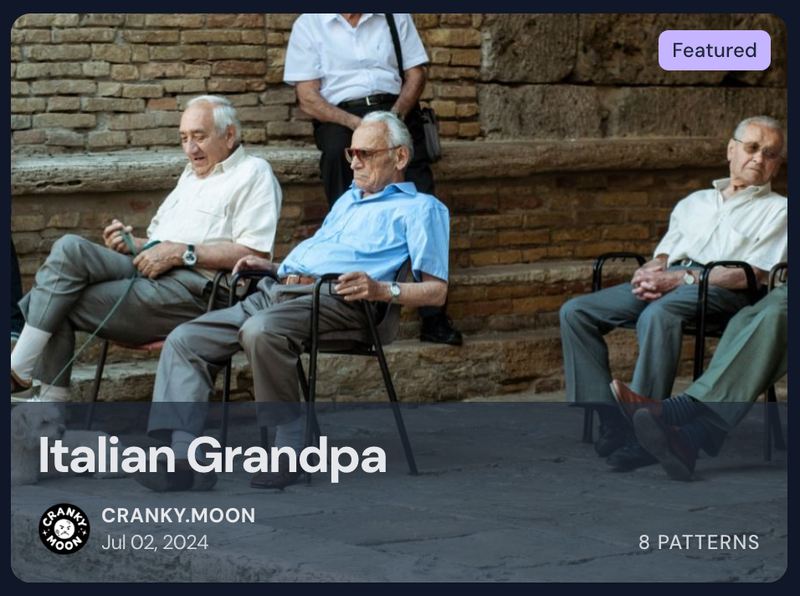
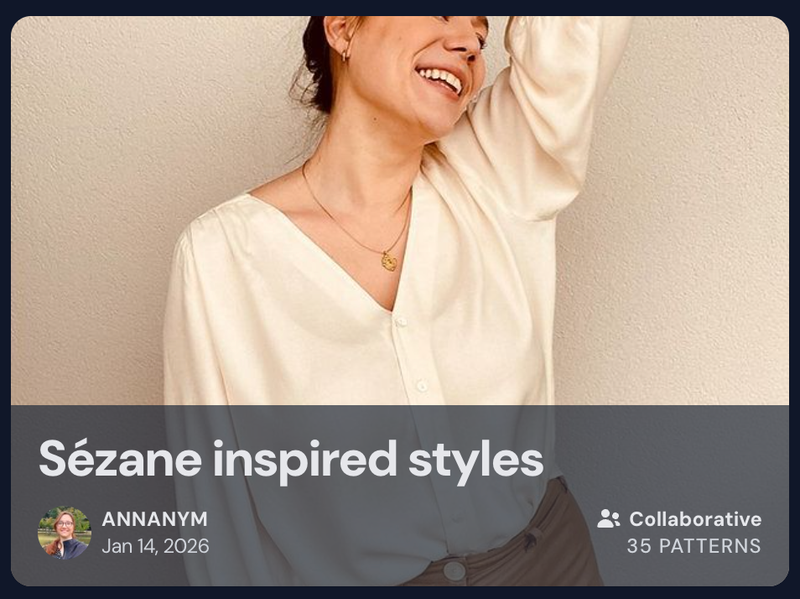
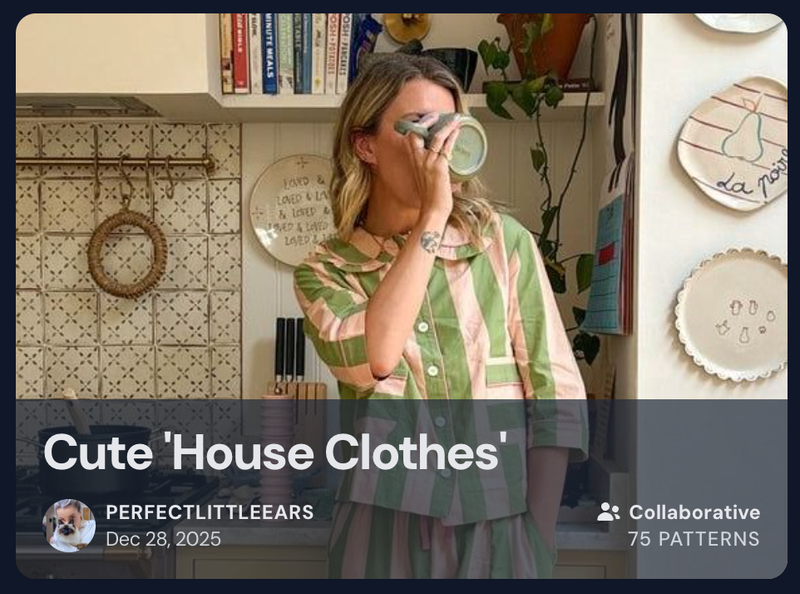
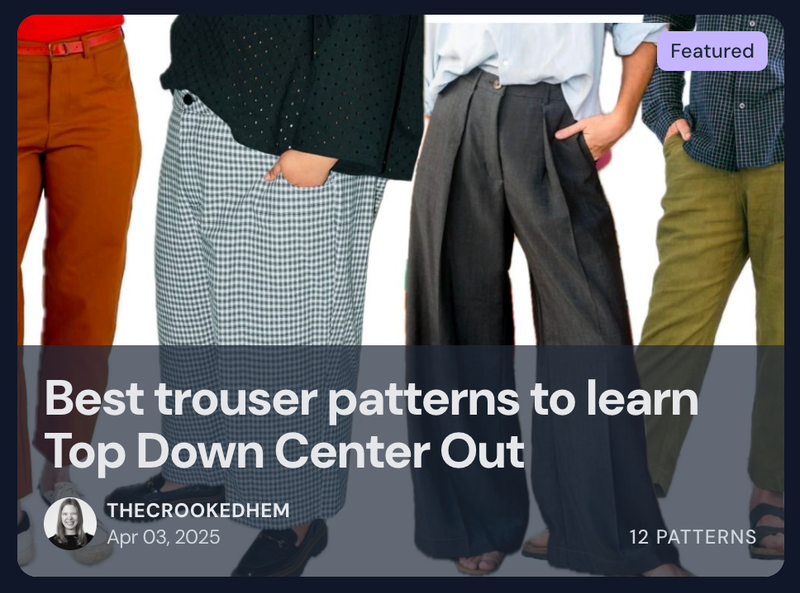
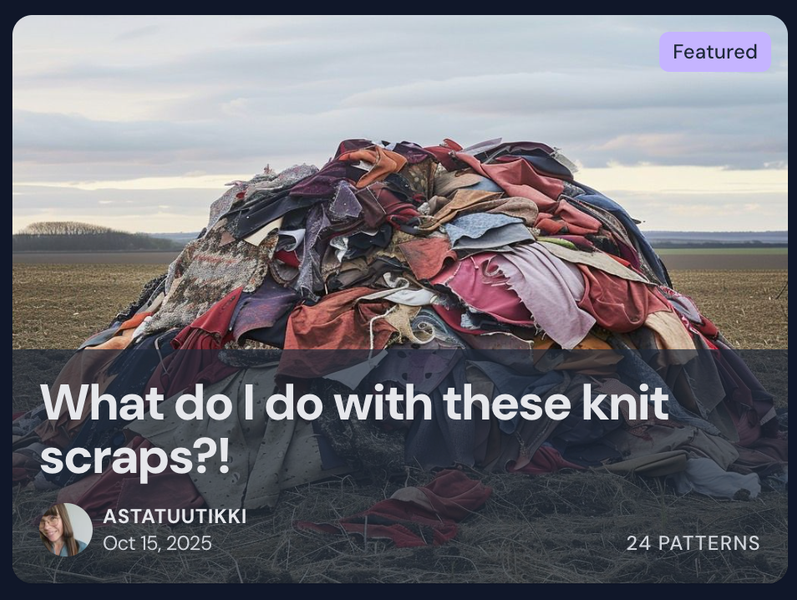
Be specific and descriptive “Size inclusive chore coats for spring” is more interesting than “Cool jackets”. Have a look at featured pattern lists for inspiration.
Examples: Patterns utilising a trend or design feature, inspired by a style icon, suitable for specific body types or occasions, etc.
Make it useful and interesting to others Ensure your public list has value beyond personal reference. “Dress patterns I own” isn't helpful to the community, nor is it the best way to track your personal collection.
Add context Explain your inspiration, what the patterns have in common, and in the case of a collaborative list; which criteria the suggestions should match.
Example: 'Looking for loose fitting, or flared midi skirts with interesting structural details, architectural shapes, fun pockets, etc. Primarily wovens.'
Avoid duplicates Before creating a list, search to see if a similar one already exists. Consider contributing to existing lists rather than creating your own.
Examples of themes
Emulating a specific vibe or style
Highlighting inspiring style icons
Specific activities, occasions or environments
Learning a specific technique
Suitable for defined fabric types/amounts
How to create a pattern list
To create your own pattern list, go to the pattern list page and click the New list button in the corner.
Before you go ahead with your own list, please familiarise yourself with the guidelines and check out some of the featured pattern lists for good examples.
Private or public
You can create both private and public pattern lists.
Private lists can be used for just about anything you want, but you should be aware that creating pattern lists is not the best way to organize and get an overview of the patterns in your stash.
For example, if you intend to create a private pattern list called something like 'Kids patterns I own' - this is better achieved by navigating to My stash in the pattern database, and filtering by age group -> Child + Baby.
You can also choose to keep your list private until you're ready to share it with the community, like a draft.
Some examples of private list ideas: a queue of the patterns you plan to make, pattern ideas for a personal event (such as your own wedding, vacation, or conference), gift ideas for a specific recipient.
Public lists Public lists will be shared with the entire community, so make sure that it is indeed useful and/or entertaining to others. Especially when it comes to collaborative lists, you should make an effort to create clear, specific criteria for what kind of patterns can be added to your list.
Editorial lists
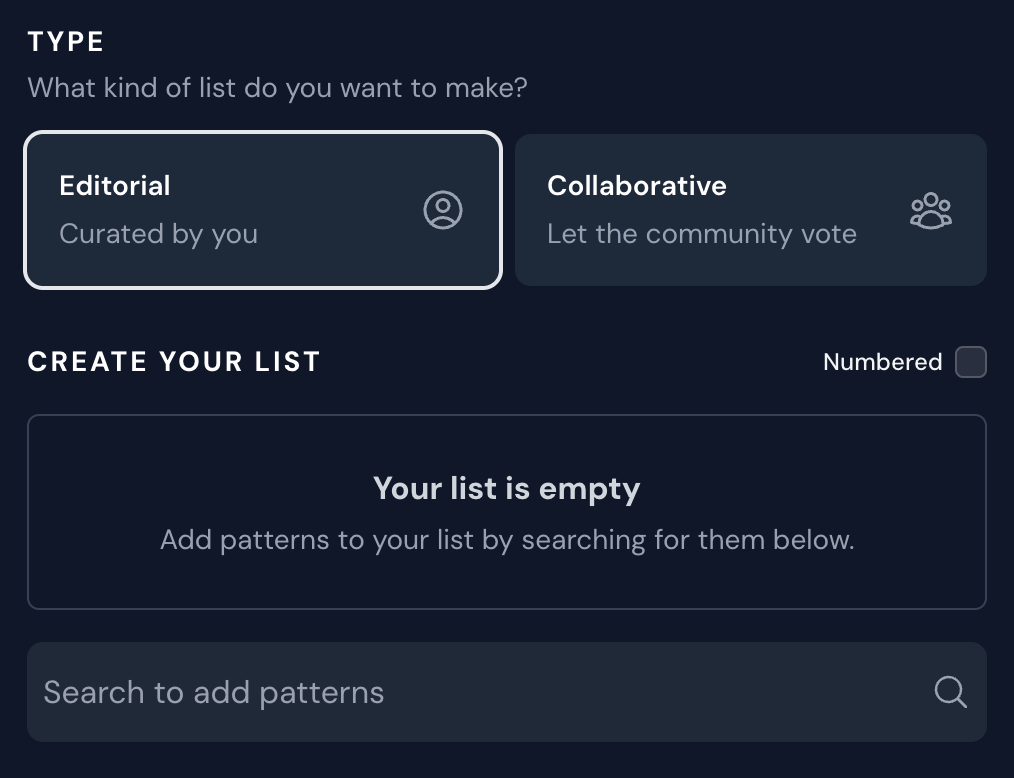
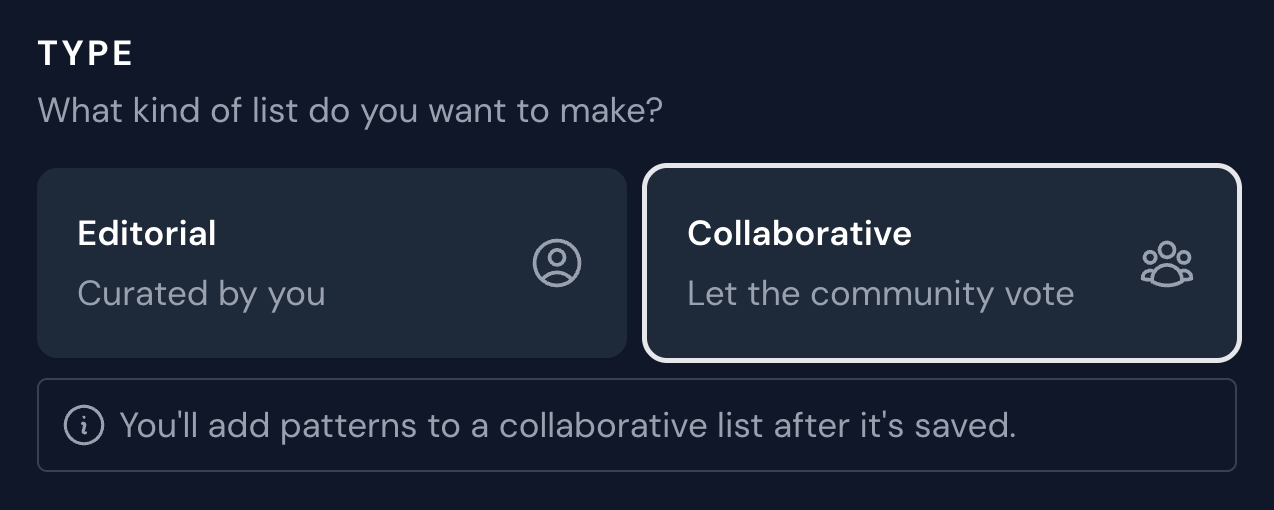
There are two types of pattern lists: editorial and collaborative.
Editorial lists are curated by you - and you choose all the patterns you want to include in your list.
You need to add at least three patterns to your list to save it. To add patterns to your editorial list, use the search at the bottom of the form.
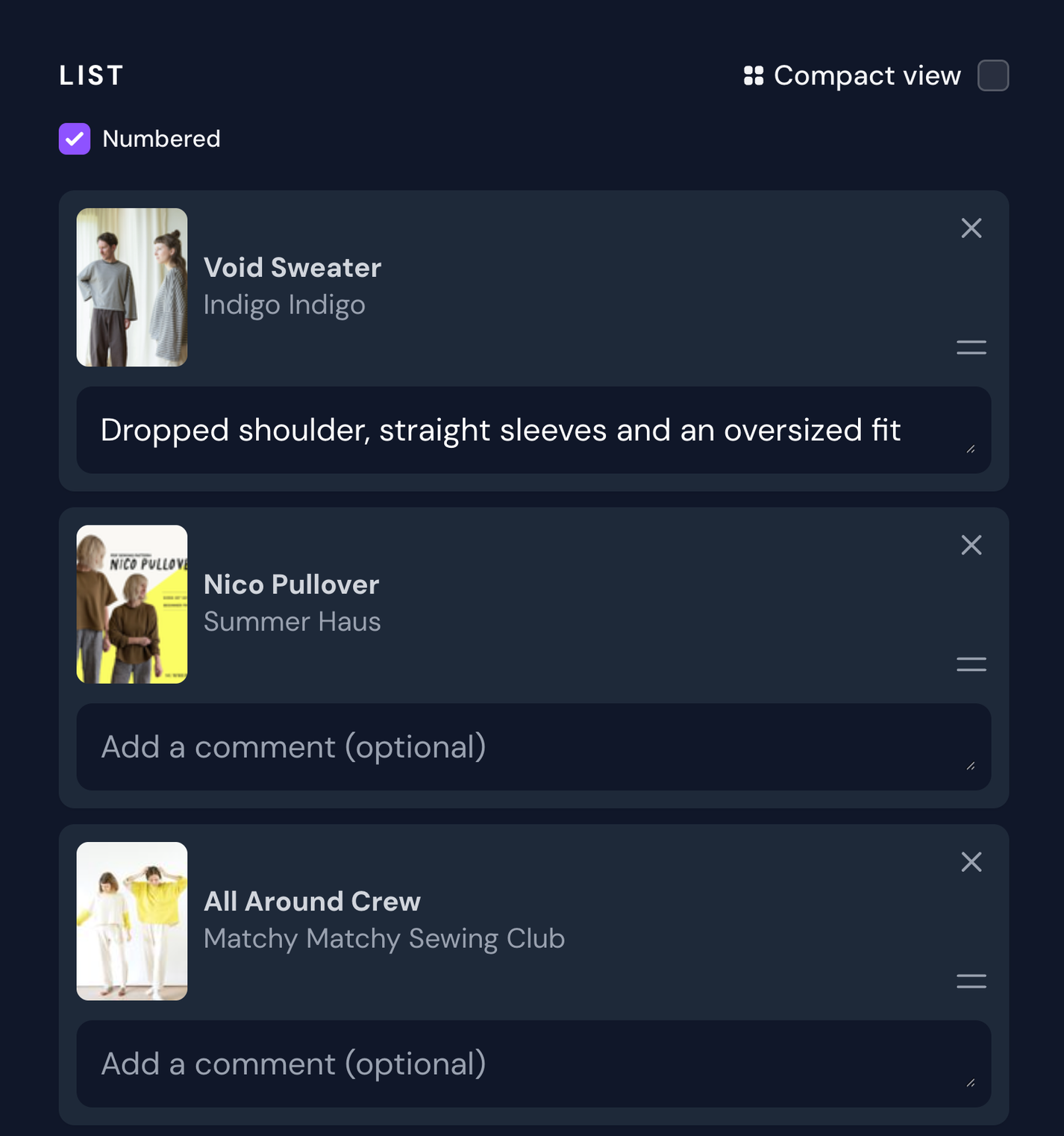
Once you've added patterns to your list, you'll be able to rearrange, remove or add comments to each pattern. If you want your list to be numbered, check the Numbered checkbox.
Pattern list items with and without comments
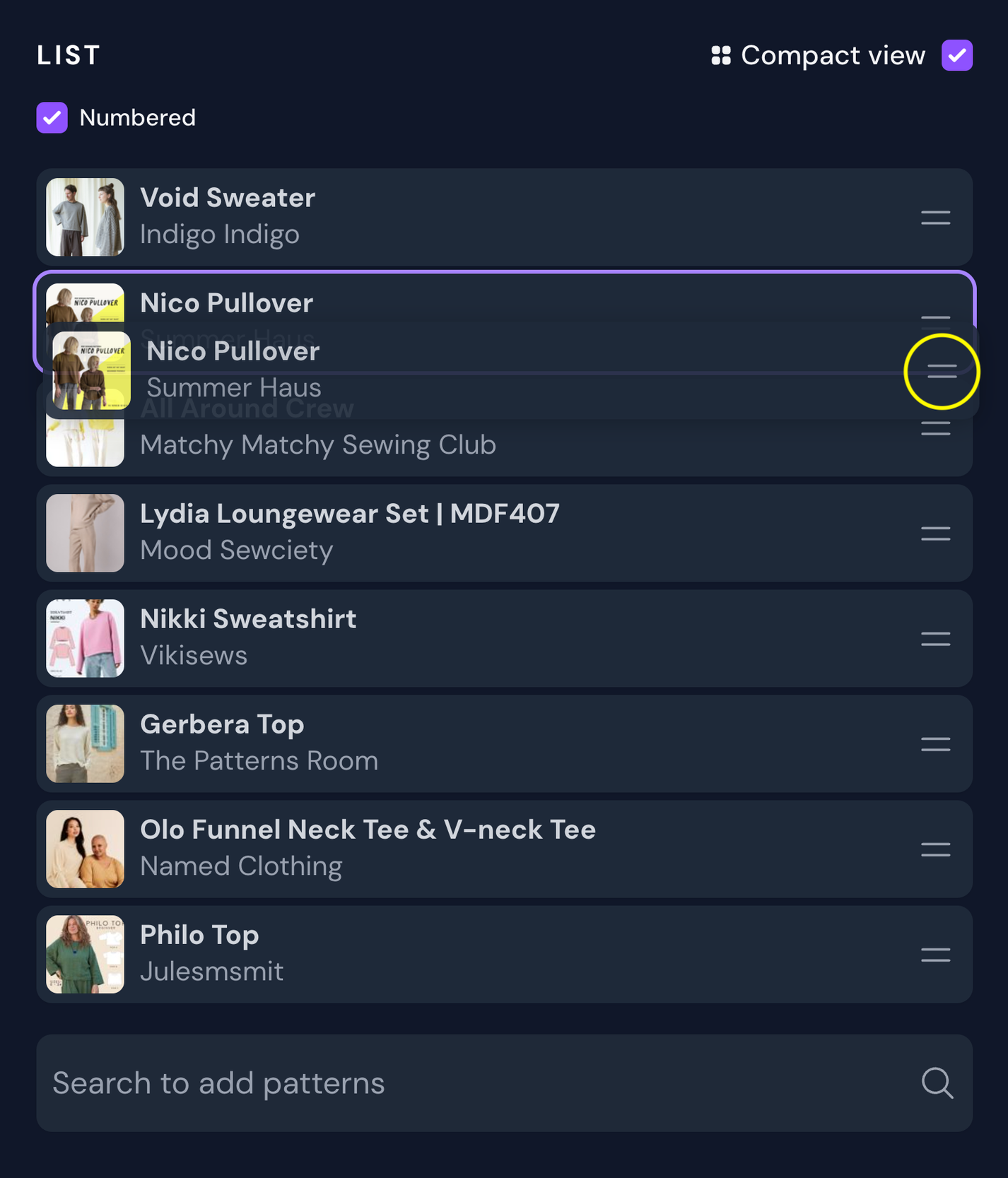
To make it easier to rearrange large lists with many items, you can check the Compact view in the top right corner to make each item smaller.
To rearrange items in your list, you can use the drag handles on the right side on the cards and drag and drop the items in the order you want.
Compact view with drag handle circled in yellow
Collaborative lists
Collaborative lists are different from editorial lists, in that you do not actually add any patterns to it before you publish the list. Instead, the patterns can be added inline on the list by yourself or other members.
Collaborative lists can be the right option if you're looking to crowdsource a list of patterns that match your criteria. Pattern suggestions can be voted on, so the patterns will be ordered by the number of votes it receives.
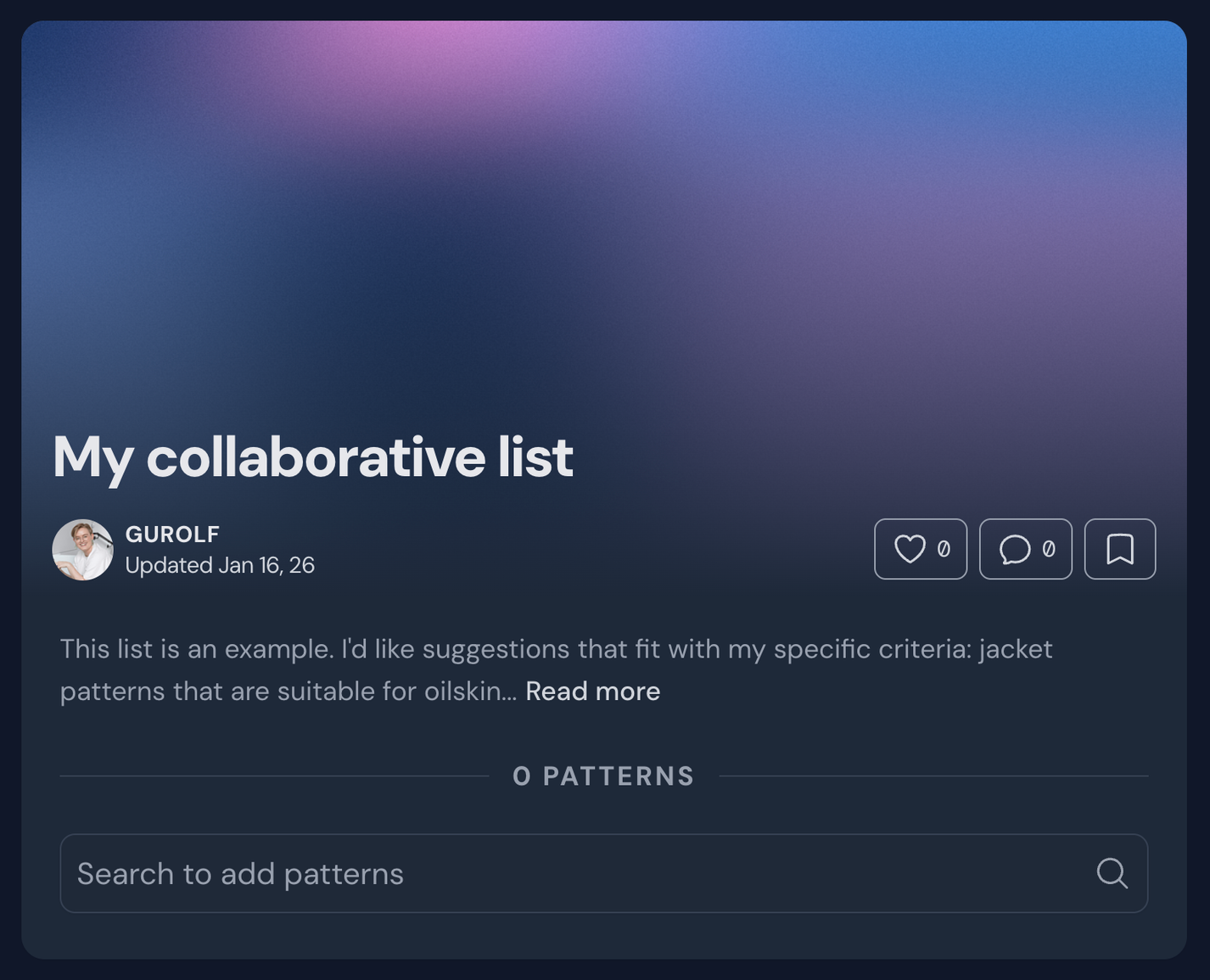
Once you've saved your collaborative list, an empty list will be created. If you know of any patterns you'd like to include in the list yourself, you can go ahead and do that now by searching for and selecting the patterns you want in the search field.
New and empty collaborative list
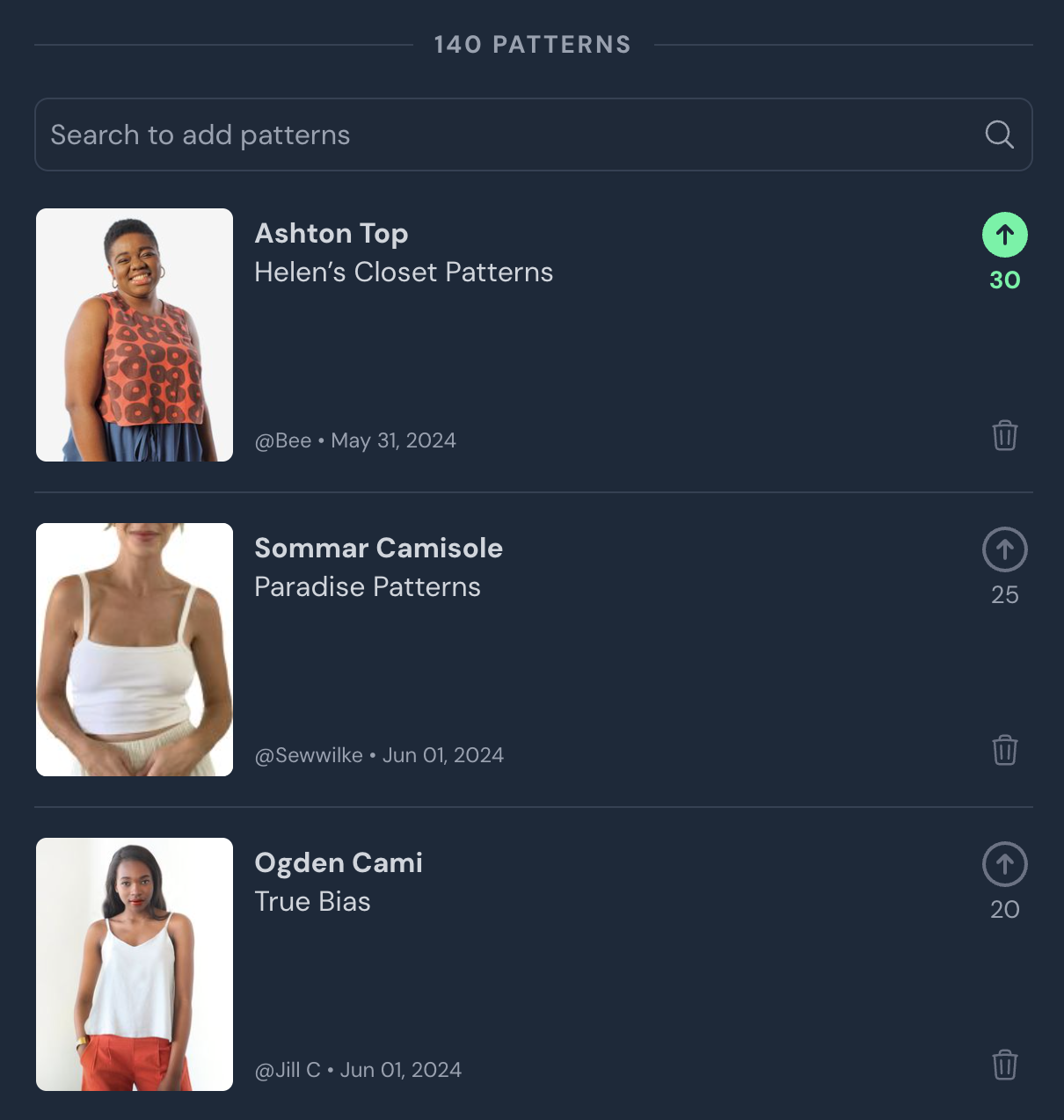
Any pattern added can be voted up (there are no downvotes). The list is ordered by number of votes, so the patterns with the most votes will be at the top.
If you search for and add a pattern that's actually already in the list, this will not add a duplicate, but it will instead add your vote to the existing pattern suggestion. This will temporarily be displayed at the top of the list to show you that your vote is counted, but once you refresh the page, it will be ordered correctly based on number of votes.
An example of patterns added to a collaborative list, with multiple votes
Patterns you've suggested or voted on will have a green, filled arrow icon. You can click the green arrow again to remove your vote. If your vote is the only one present (1 vote), removing your vote will also remove the pattern from the list.
If you are the creator of the list, you can remove items from the list by clicking the trash bin icon.
Only remove items that clearly do not fit your criteria. If you want full control of the patterns in your list, please create an editorial list instead.
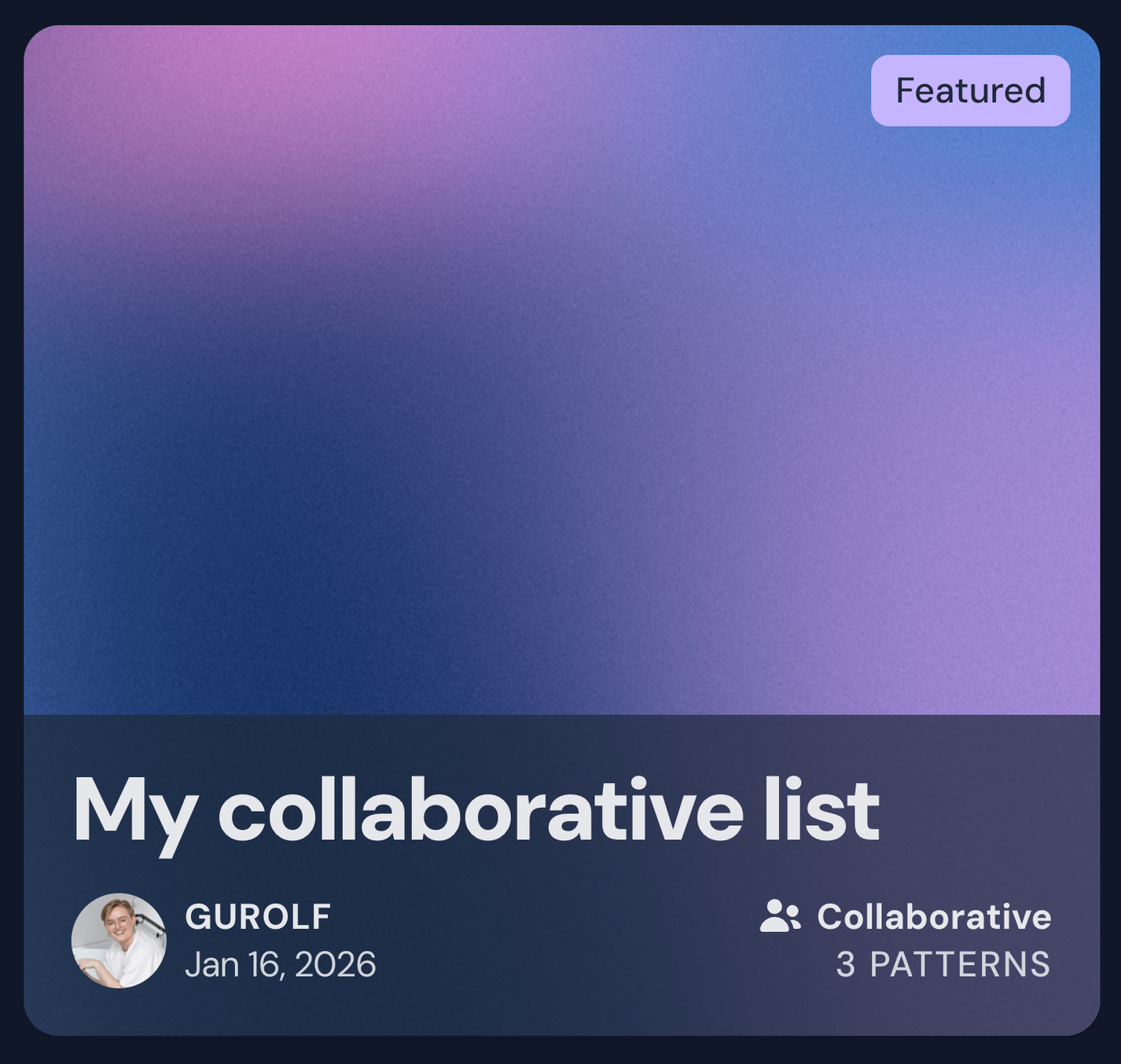
Featured list
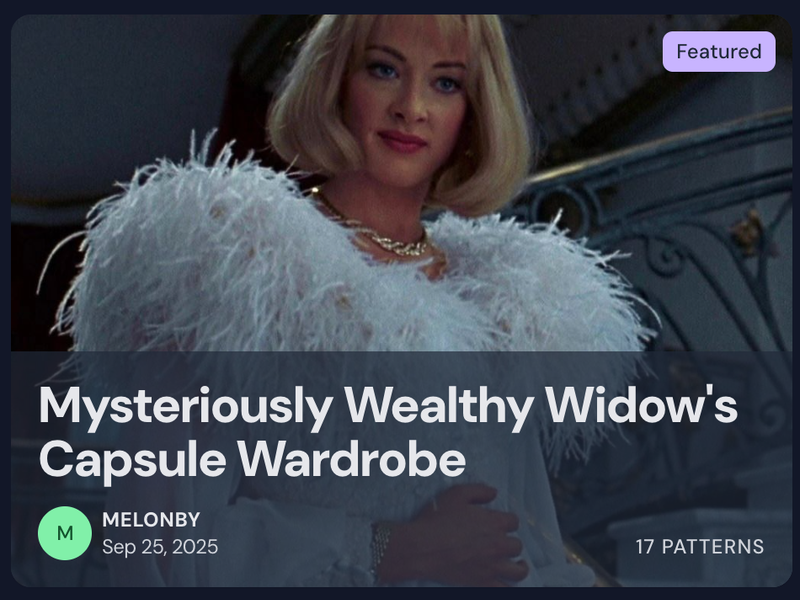
Some pattern lists will be featured by admins and mods at their discretion. There are a number of reasons why a list might be featured, but in short: it's a particularly useful, creative or entertaining list that follows the guidelines.