Projects
Sharing projects
Projects are private by default, but you can share them with the community at any stage. However, we recommend that your project has at least some details in place before you share it, like what patterns or fabrics you're using, inspiration photos, or a description. This makes it easier for other members of the community to understand what your project is about.
How to share a project
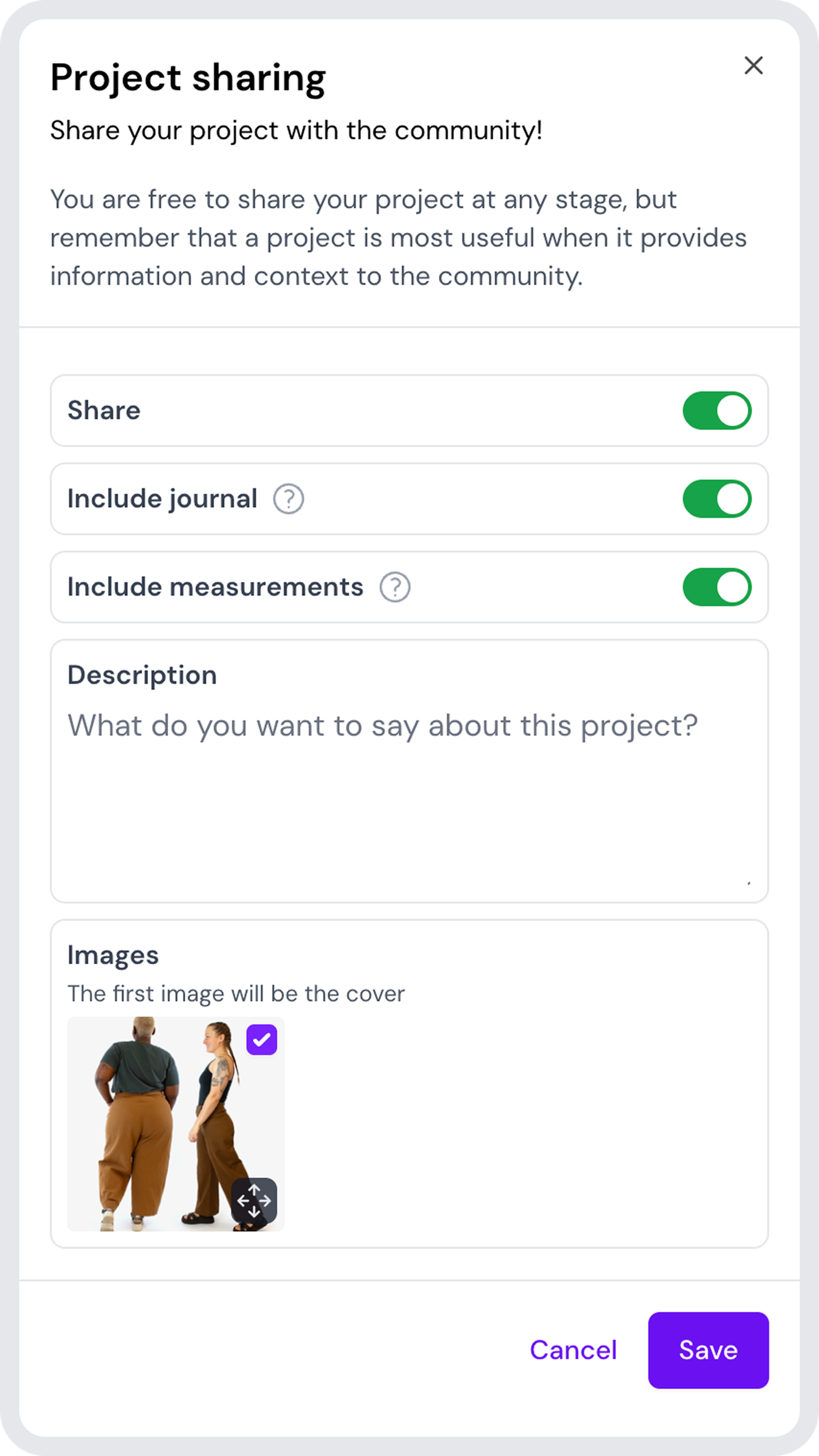
To share a project with the community, go into a project and click the share project-button in the top right corner. This will open a modal where you have the option to turn on sharing.
When you toggle sharing, you will also get access to more options; like whether or not you want to include the journal and measurements. You can also add a description (similar to a caption on Instagram), and arrange the images you want to include in your shared project.
Note: you have to click save to confirm these options and share your project.
Public view vs editing view
Once a project is shared, you will be redirected to the public view of your project. This is located on a different URL than when you're working on or editing your project.
Editing link: threadloop.app/projects/XX
Public link: threadloop.app/members/username/projects/project-name
The editing URL is not unique and should not be shared with others, as it is just a sequential ID (for example; if it's the tenth project you've created on Threadloop it will be …projects/10). If you share it with someone who has a Threadloop account, and a project with the same number ID, they will just see their own project instead of yours. If you want to share a project with someone else, use the public link.
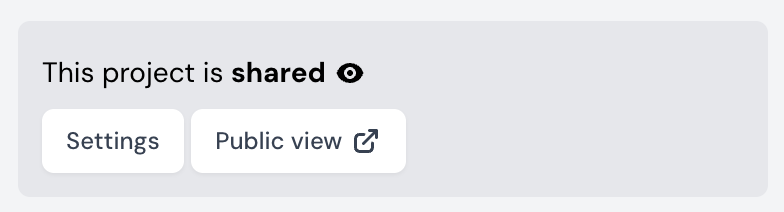
You will get two new buttons on top of the project when a project is shared: settings and public view. Settings will open the modal with your sharing options, and here you can choose to change any of these options or un-share the project by toggling it off and clicking save. The Public view-button will direct you to how the project looks like to other members.
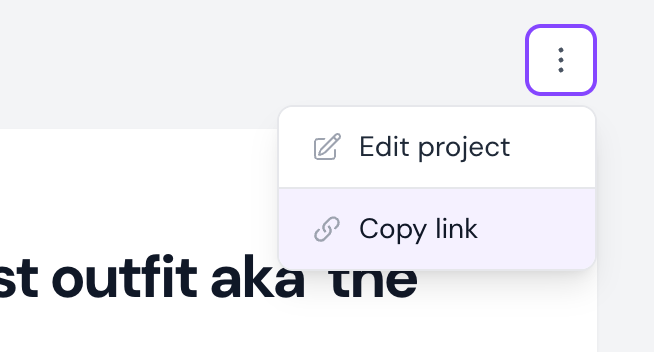
When you're on the public view of a project, you can click the options button in the top right corner (three dots) and click Copy link.
Here is an example of how a project can look in both the edit and public view. As you can see, they're quite different!
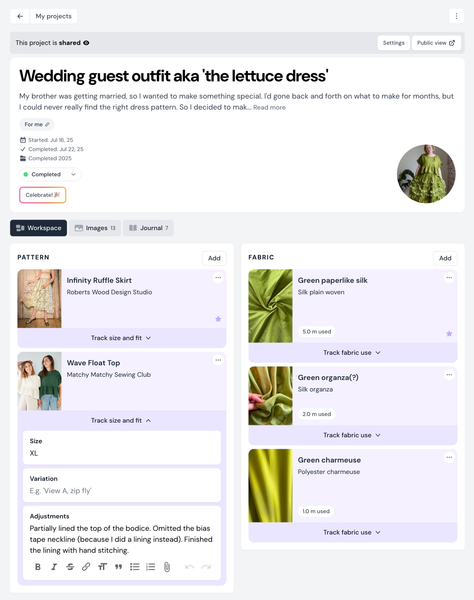
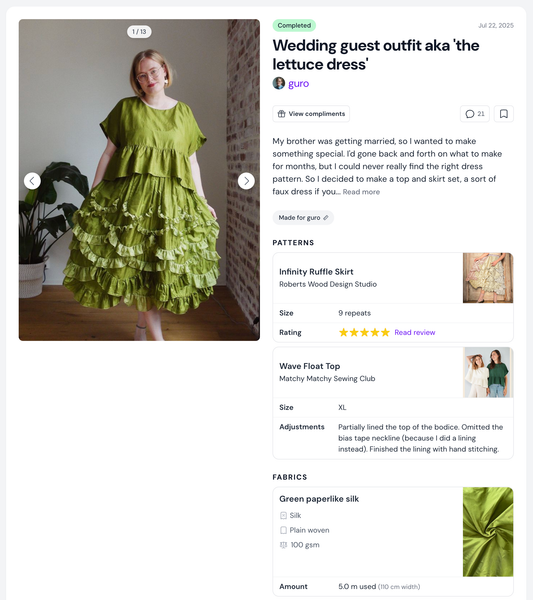
You might also notice that there are some details added to the project's public view automatically, like the review/rating of patterns. This will show up if you have a review of a pattern you've included in the shared project.
Compliments and comments
Once you've shared a project with the community, you might receive compliments or comments on your project. You can manage if you receive notifications when someone compliments or comments on your project in your notification settings.
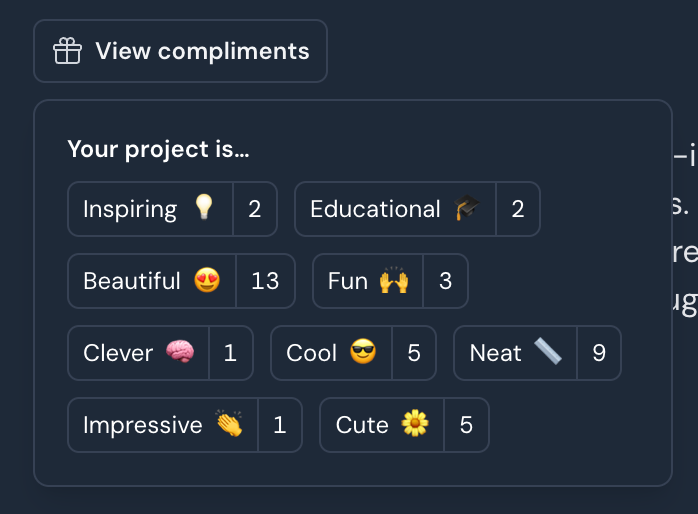
If the compliment notification is on, it will include the username of the person leaving a compliment, but not which compliments they have given. If the notification is turned off, the compliments will be received anonymously and are only found if clicking 'View compliments'.
Click 'View compliments' to see if your project has any. Only you can see these compliments and how many you've gotten.