Collections allows you to organise your projects more freely than by using the standard Sorted view for projects. You can create your own collections and order your projects by drag and drop within them, so you can more easily prioritise and get an overview of your projects.
You can read more about how to use collections here.
Preset tasks
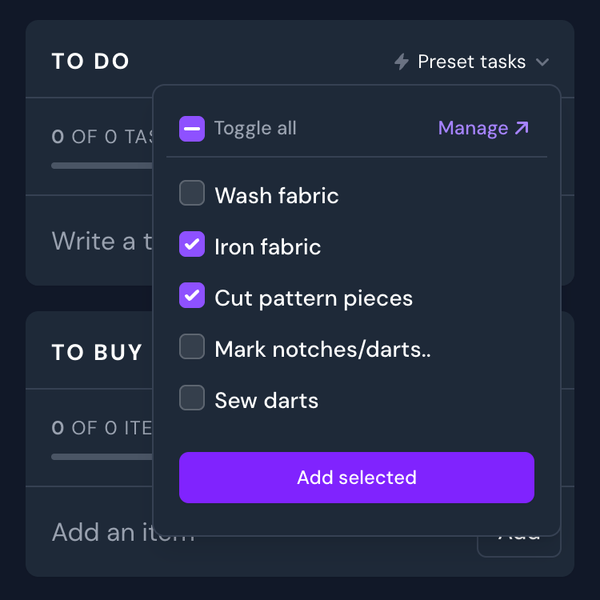
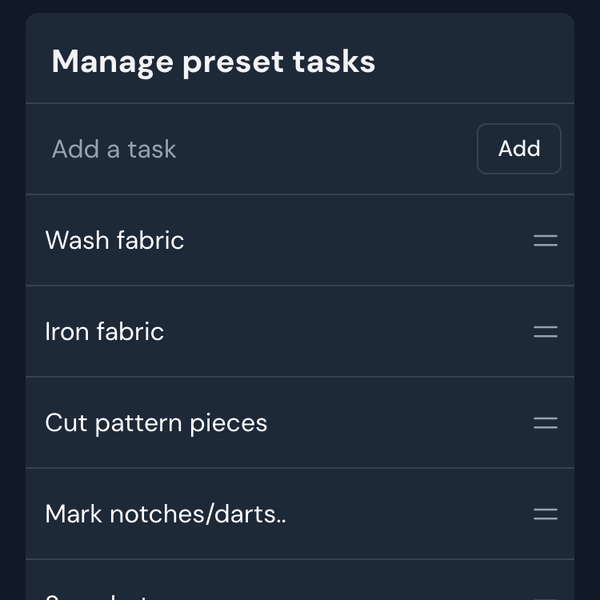
Create your own custom list of frequent tasks, that you can reuse across multiple projects in your to do list. You can find your list of preset tasks in the top right corner of your to do list, where you can easily select the ones you want to add to a project.
Fabric import bot
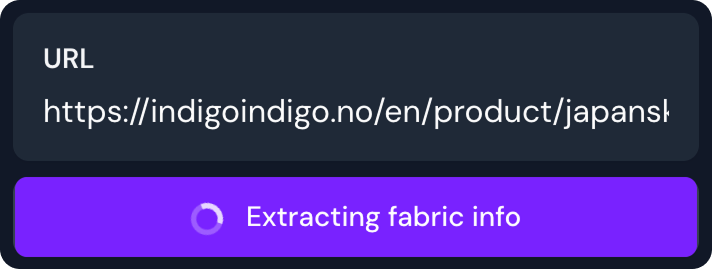
If it feels overwhelming to even start digitising your fabric collection, the import bot will be super useful, especially if you purchase a lot of your fabrics online. Just give it a link, and it will enter all the fabric details for you. It just takes a few seconds, and it can even be used on websites that are not in English.
This feature uses generative AI, and might not always produce correct results. Please double-check the details to make sure everything looks correct.
PDF pattern storage
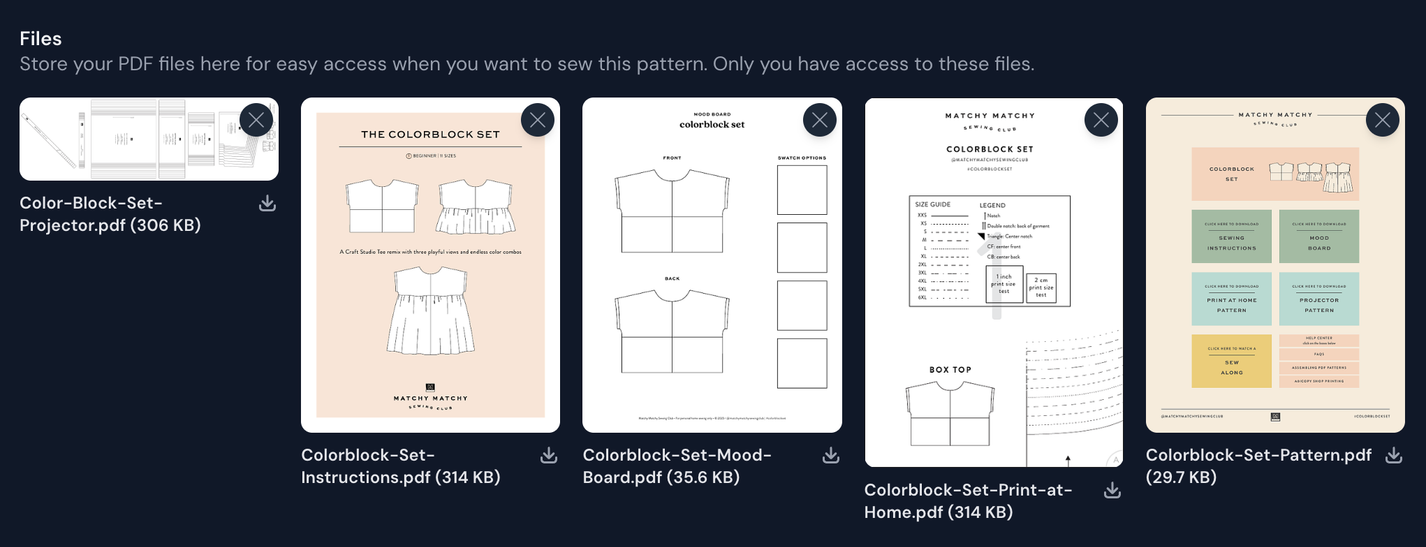
For easy access to all your pattern PDFs, you can upload them to the My details section on a pattern page. No matter where you are or what device you're using, you'll be able to use your files.
Saved searches
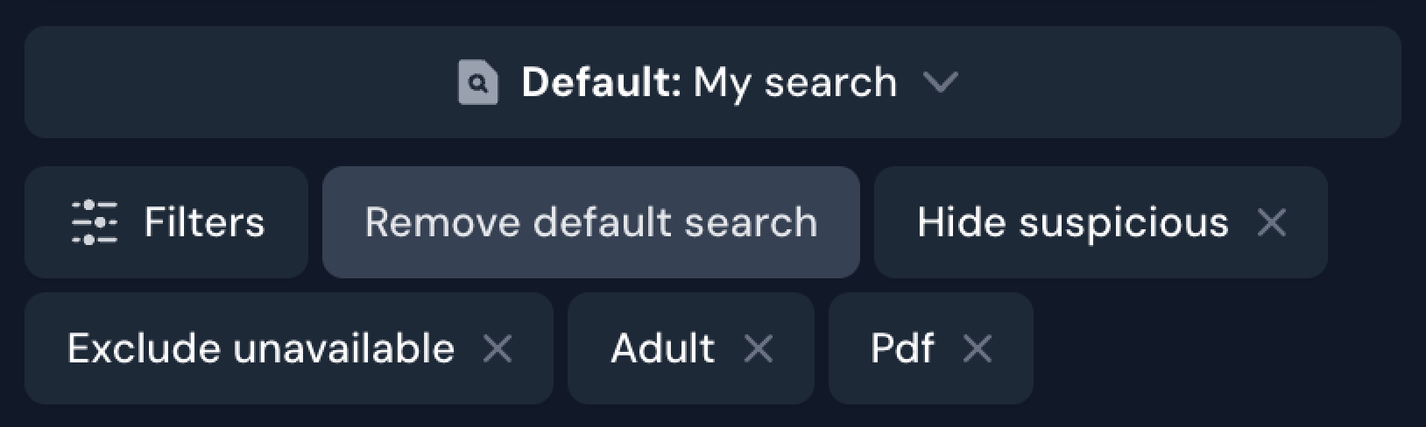
If you browse sewing patterns on Threadloop a lot, you probably have a few go-to filters you apply every time. This is where saved searches comes in. You can create custom searches that are applied with a single click, as well as a setting a default so every pattern search starts exactly how you like it.
You could create saved searches for all your family members so you can easily find patterns that fit their body type, age, measurements, etc. Perhaps you'd like to easily filter out all magazines, books or paper patterns, for example.
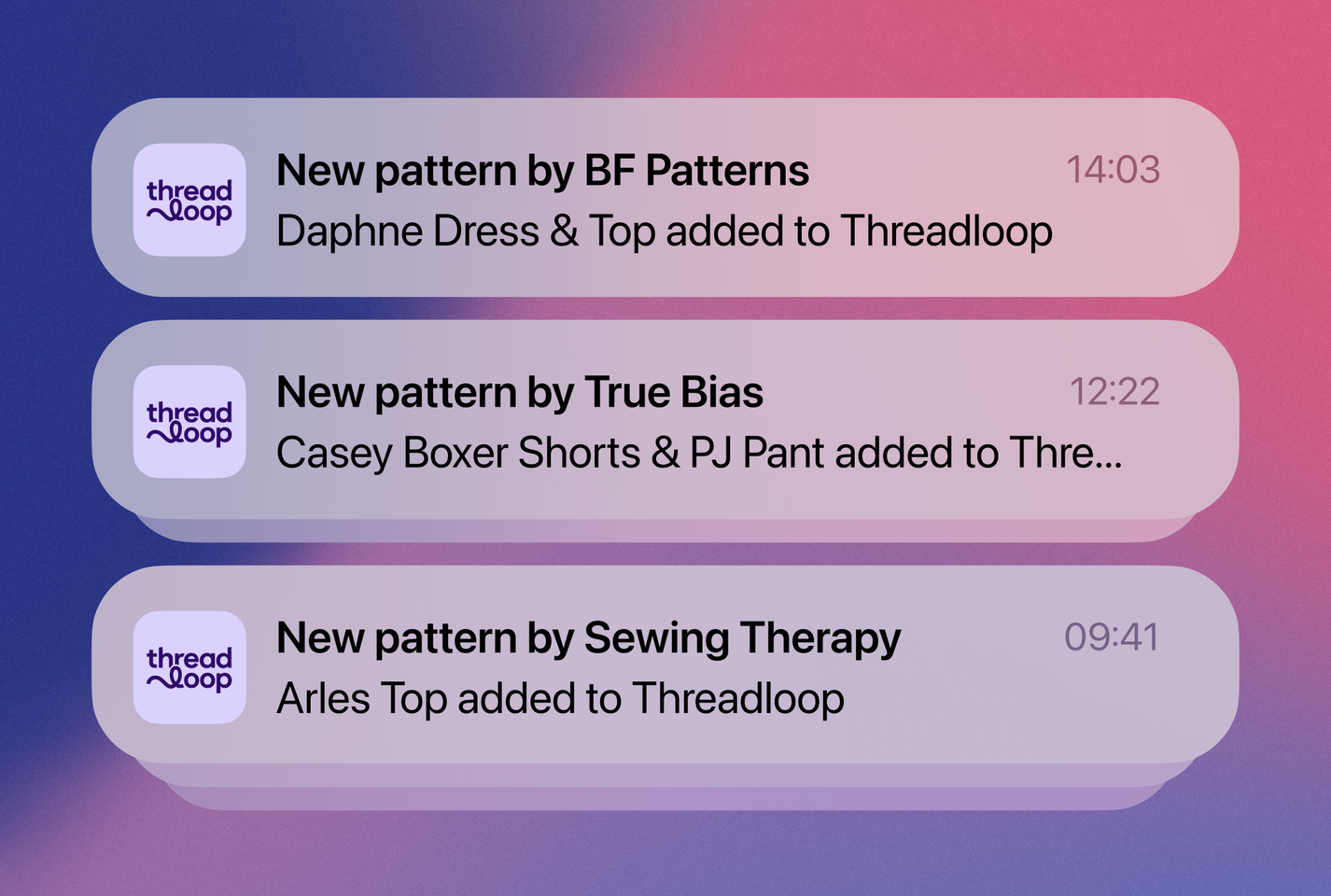
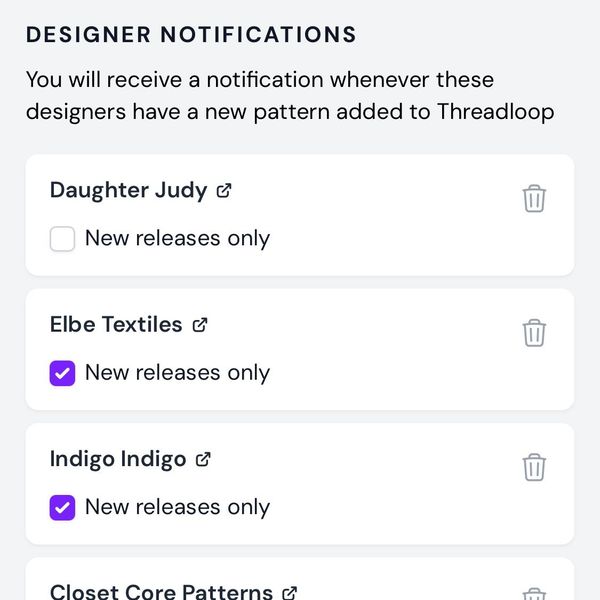
You can follow designers so you'll never miss a new release from your favorites! When there's a new pattern added to Threadloop, you will get a notification.
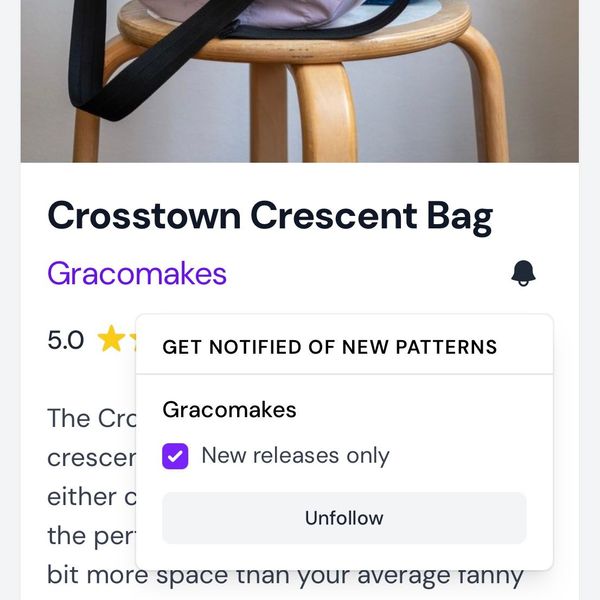
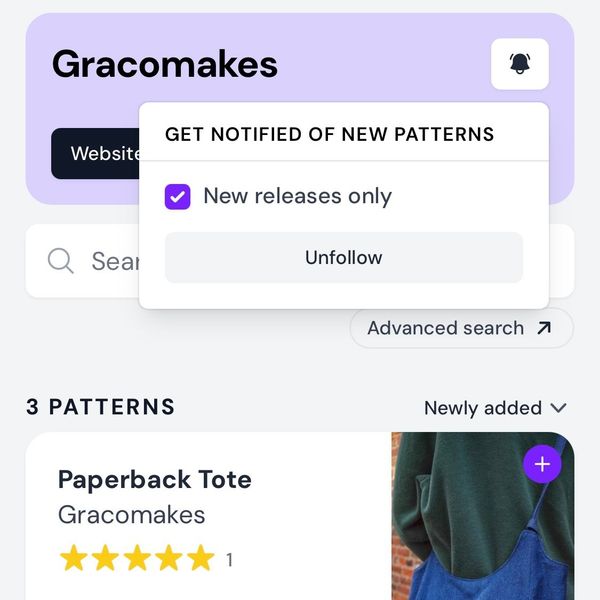
You can follow a designer from one of their pattern pages or their dedicated designer pages. Browse designers here
You can manage the designers you follow under your Account settings -> Notifications
The setting "New releases only" means we will only send you notifications of patterns that have a release date, and the release date is after or on the day you started following the designer. This way you won't be notified of patterns without a release date (or one in the past), which would most likely be older patterns from the designer.
If you decide to cancel your Plus membership, we will not remove the designers you follow, you will just stop receiving notifications until you resume your subscription.
From a pattern page - click the bell icon to follow a designer
You can also follow them from their designer page
Manage your designer notifications in your settings
More stats
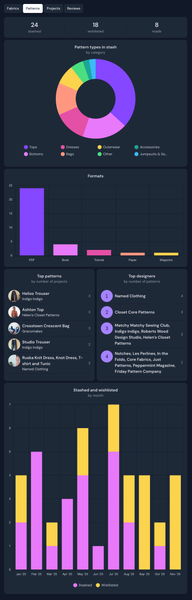
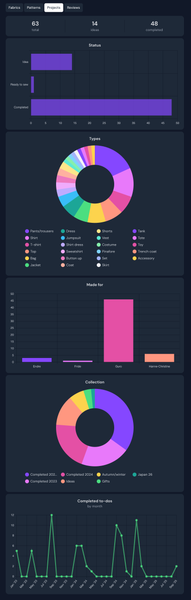
Everybody gets fabric stats, but with Plus you also get stats for your patterns and projects. This includes data about your most common pattern and project types, your top patterns and designers, graphs showing how many patterns you've stashed and wishlisted, and more.
Here's a little peek at how this can look:
Pattern stats
Project stats
To-dos and shopping in one place
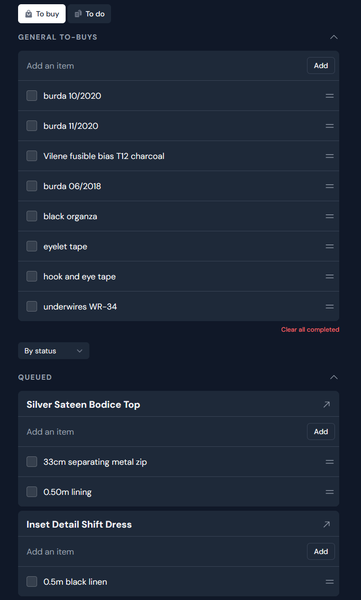
View all your lists across projects without opening each one individually, and add general items not tied to specific projects.
Combined shopping list for all my projects (by status) + general shopping list at the top
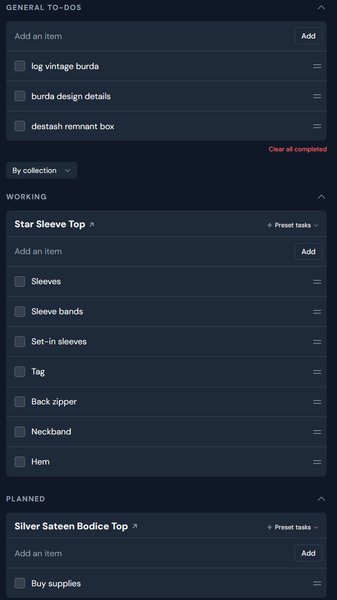
Combined to do lists from all my projects (by collection) + general to do list at the top
These lists can be grouped by status or collections for plus users using the drop-down. You can access these quickly from the Organize menu for when you're out and about
Duplicating
You can duplicate fabric, notions or projects to save you some time when entering similar items. For example, if you have several lengths of fabric of the same type in different colors, you can duplicate the first one you entered and just change the color. Everything except the length and width will be retained in the duplicate.
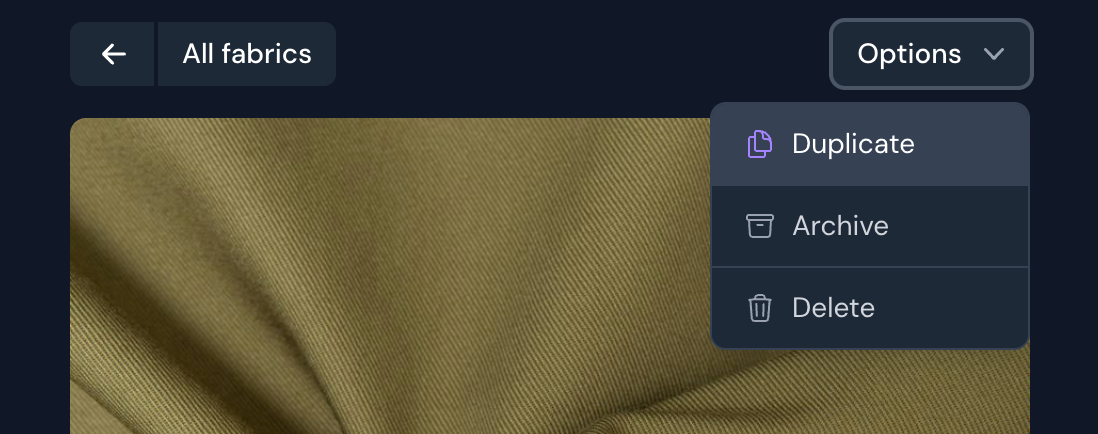
To duplicate a fabric, notion or project, click the options button in the top right corner -> Duplicate. This will immediately create a copy of the resource that you can edit as you like.
Duplicating a fabric
Archiving
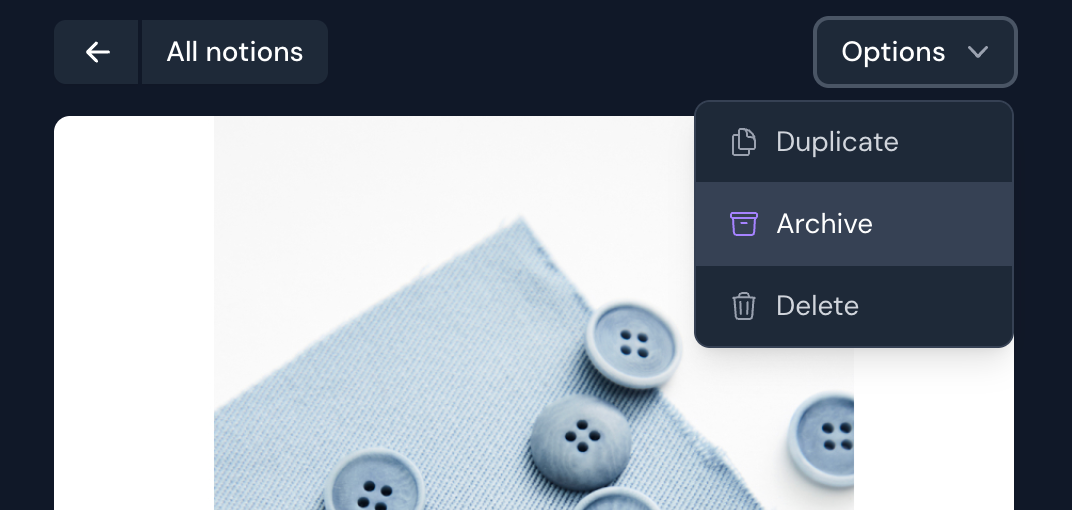
Archiving a fabric or notion hides it from your stash, but still retains all the information and links to projects. For example, you might want to archive a fabric or notion you've used up to tidy up your stash - but if you ever purchase more of that archived resource, you can quite easily restore it to your stash and add the amount or length you've acquired.
Archiving a notion
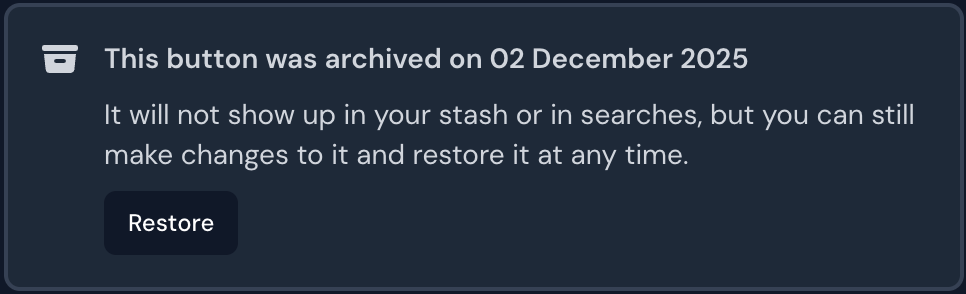
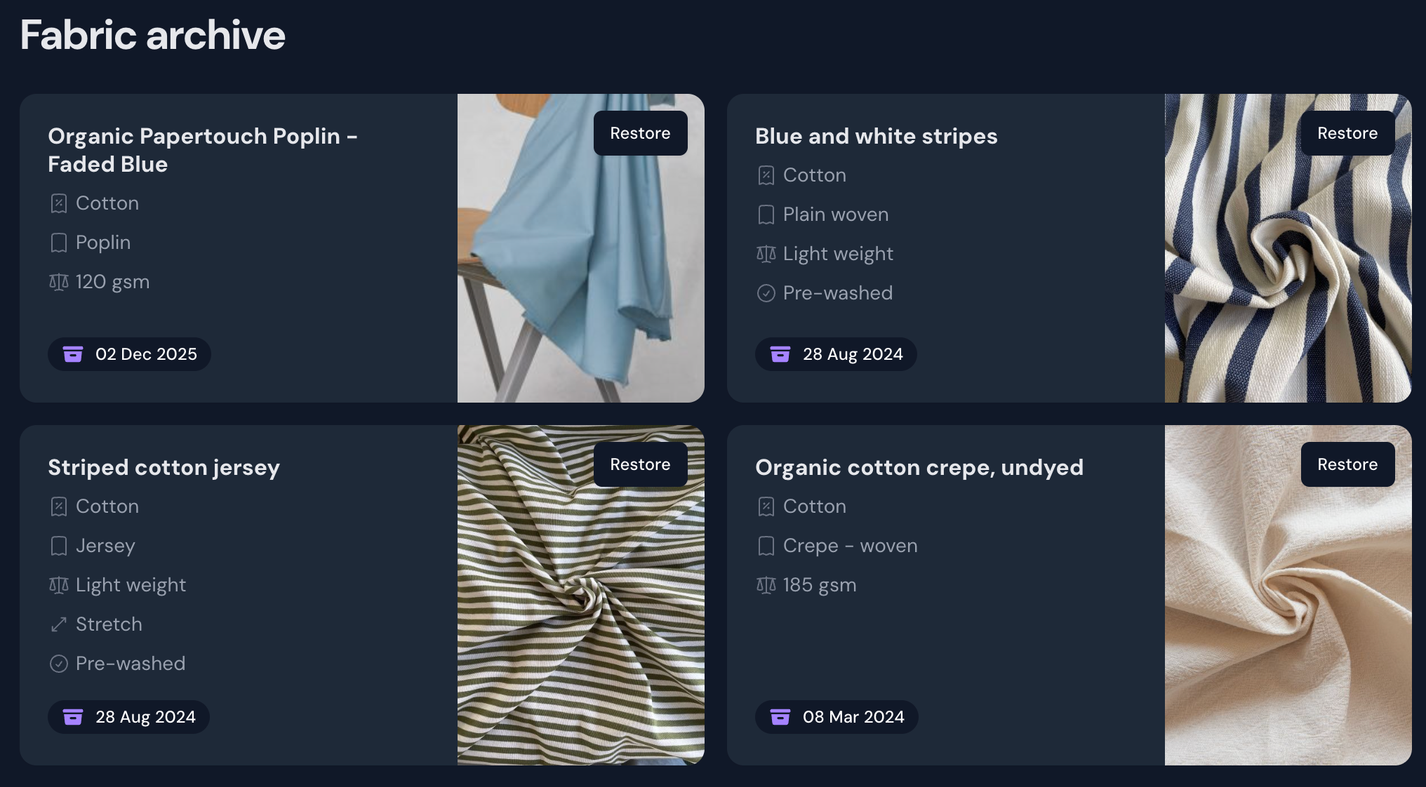
Archived fabric and notions can be accessed from a link at the bottom of the filter menu or by going directly to the fabric archive or notion archive. Here you can see what date it was archived, and also restore it.
Fabric archive
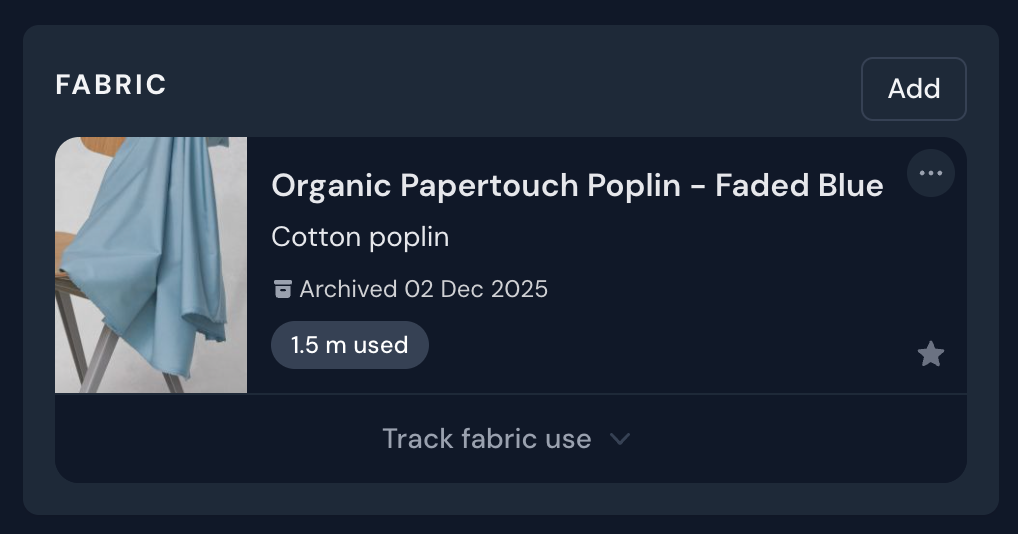
Archived fabric in a project
Multiple images for a fabric or notion
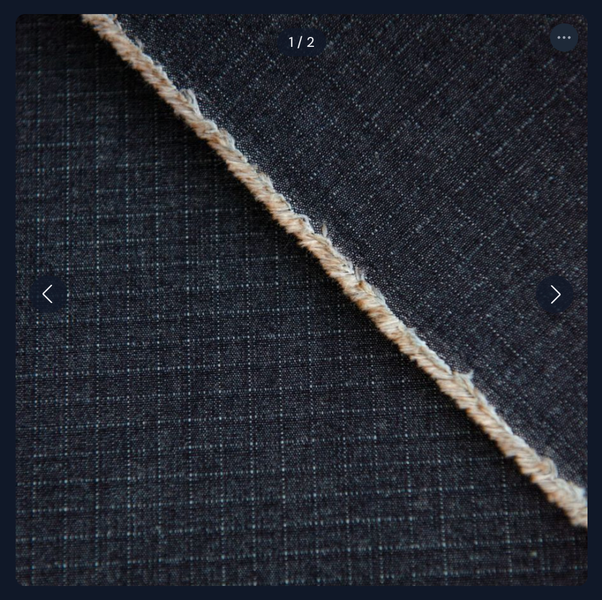
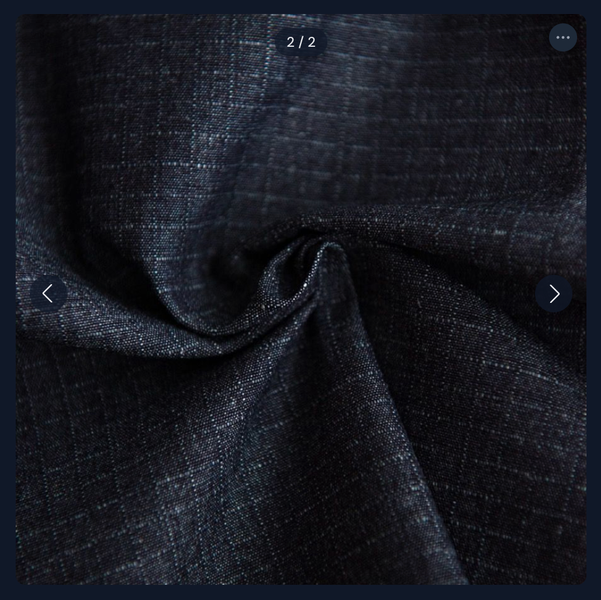
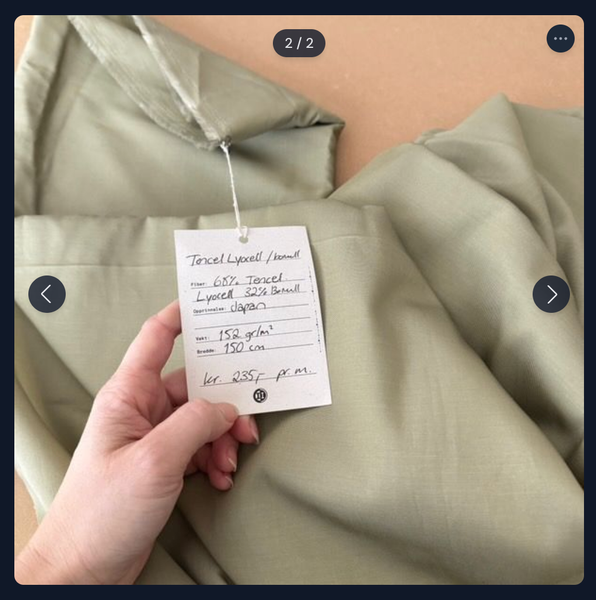
With Plus, you can add more than one photo to a fabric or a notion. You could for instance use this to capture different states or drapes of the fabric, or include a label.
Flat lay
Scrunched
With label
Custom profile banner
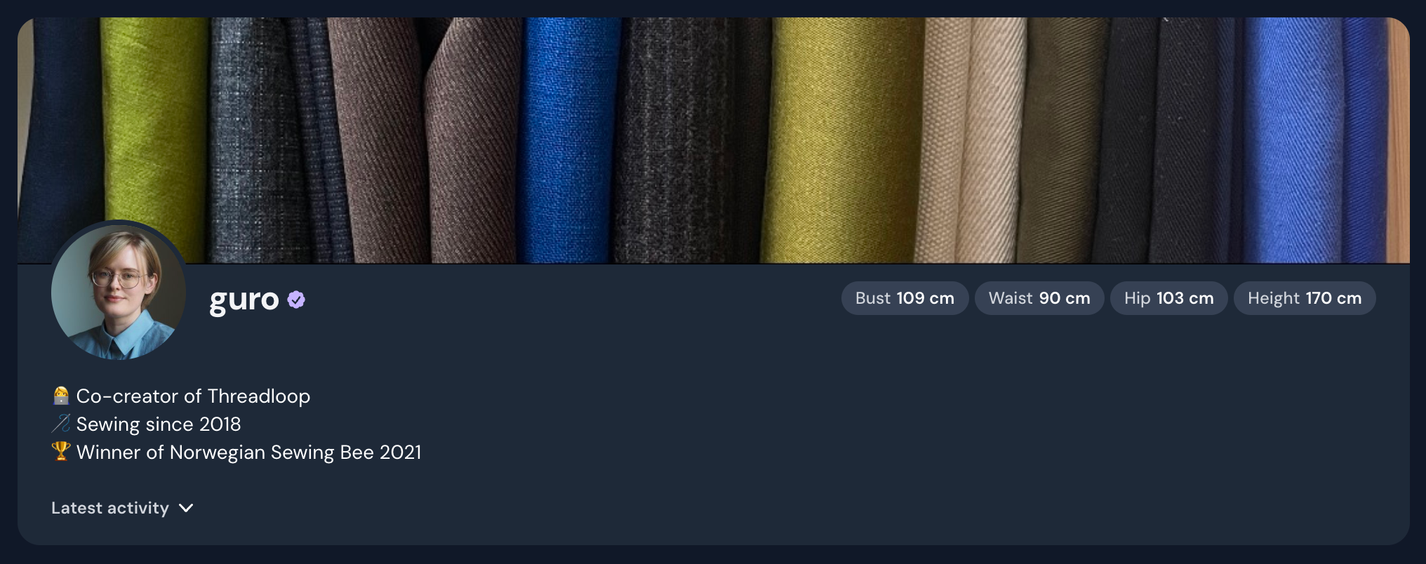
By default, all profile banners look the same. But with Plus, you can upload your own photo to customise your profile.
Custom profile banner on Guro's profile
Manage dashboard
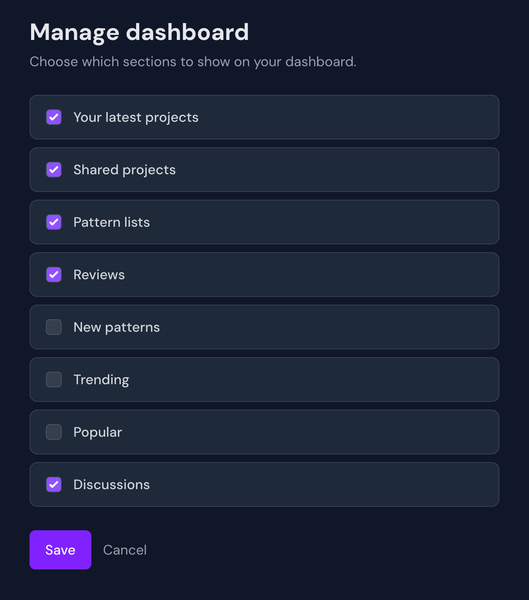
As a Plus member, you can customise your dashboard/home screen to fit your needs.
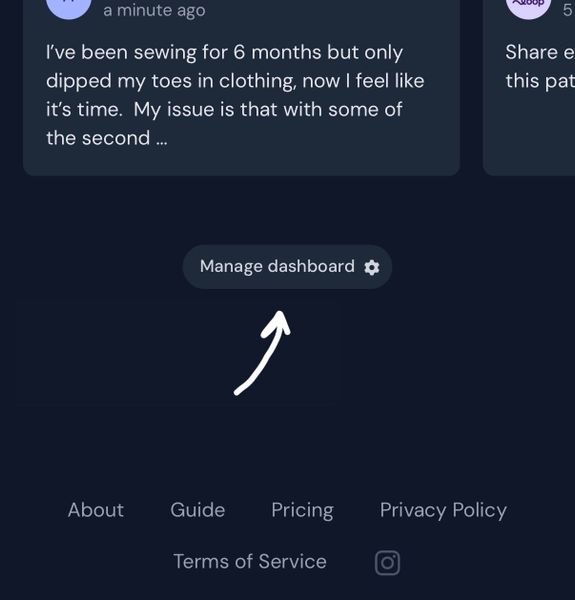
For example, someone on a self imposed pattern purchase ban might want to hide the new and trending patterns so they don't get tempted. To manage your dashboard, scroll to the bottom of the page and click Manage dashboard. You'll then be able to toggle individual sections on and off.
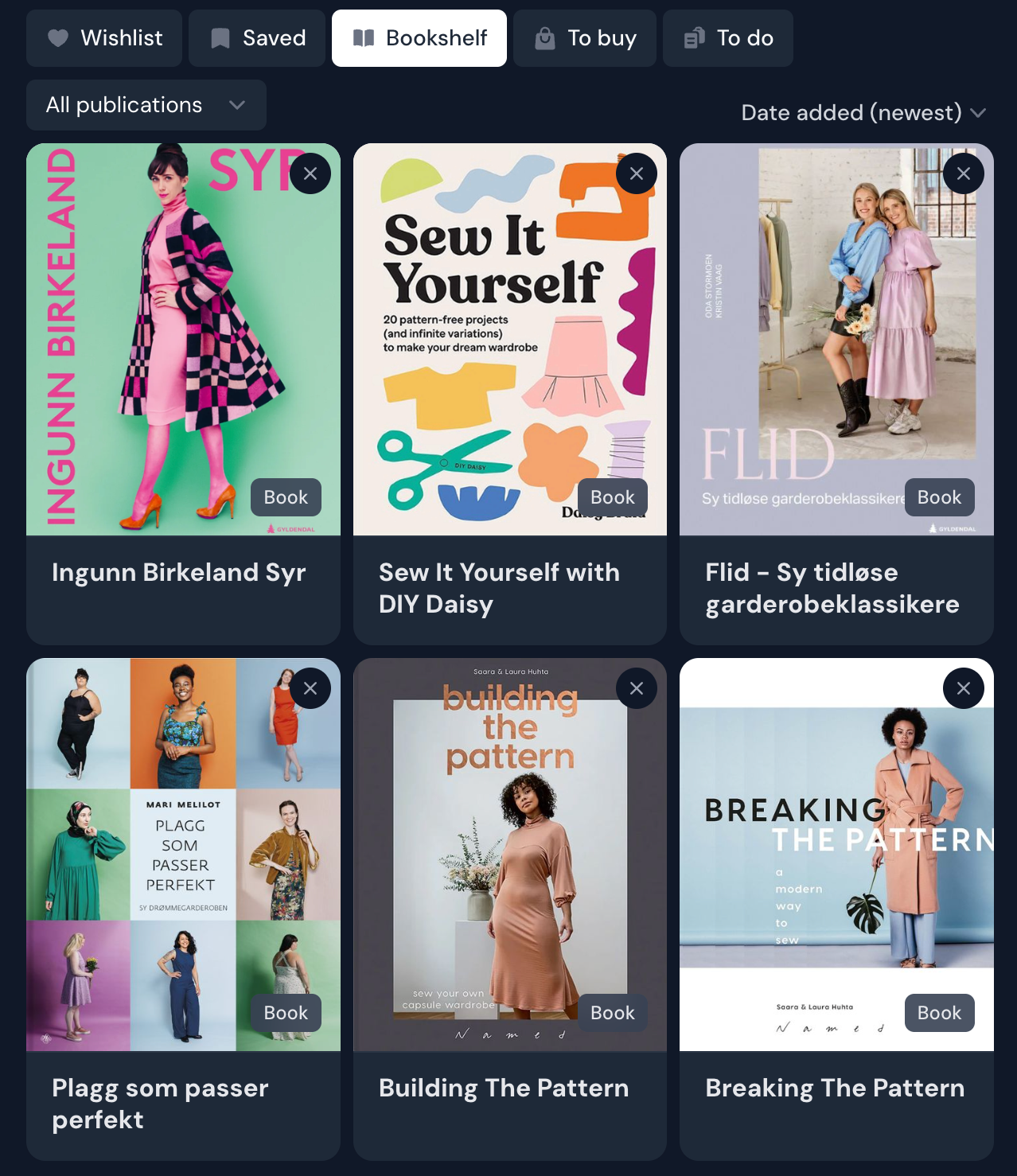
Track your book and magazine collection
Get a full overview of all the patterns you own, even the ones in books and magazines! When you add a publication to your bookshelf, all its patterns will be added to your stash (even the ones added in the future!) - and you'll get a beautiful overview of all your sewing books and magazines.
If you want to change the attributes of several resources at once, you can use to bulk edit. For example, you might want to add the same tag to multiple fabrics or archive several notions at once.
You can bulk edit:
Projects
Fabrics
Notions
My details for patterns in your stash (your personal pattern tags, etc)
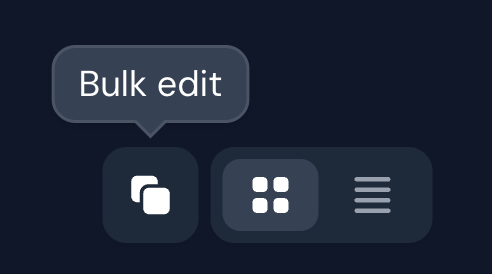
To bulk edit, go to the resource you want to bulk edit, and find the bulk edit button in the top right corner, next to the display options.
Bulk edit button - looks like two stacked rectangles
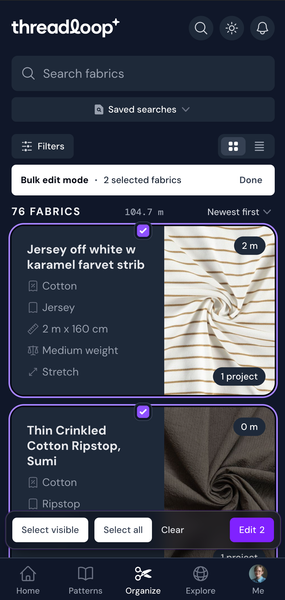
When you click the button, you will enter bulk edit mode. This changes the resource cards from being clickable links to being selectable items. A checkbox will appear at the top center of the card, but you can click anywhere on a card to select it. It will get a colored circle around it once selected.
You'll also see a new toolbar at the bottom of the screen, as well as a little banner at the top that shows how many items you've selected (along with a 'Done' button you can click once you're finished).
Click individual resources to select them, or use the multi-select buttons in the bottom toolbar. 'Select visible' selects all resources currently on screen (often 20 items), and 'Select all' selects every item in your results (in the example below: all 76 fabrics I have).
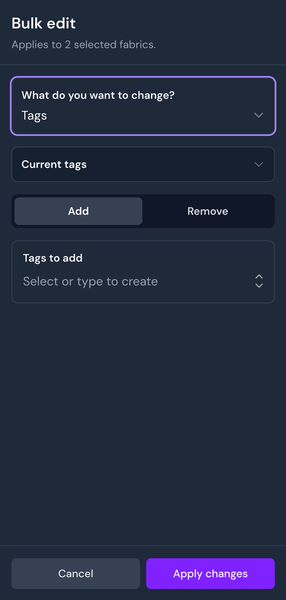
When you've selected the resources you want to edit, click the "Edit" button in the bottom right corner. This will open the bulk edit options. Here you can pick what you want to change, and how you want to change it.
Depending on the resource you're bulk editing, you'll get different choices in the bulk edit options.
Bulk edit mode in fabrics
Bulk edit options
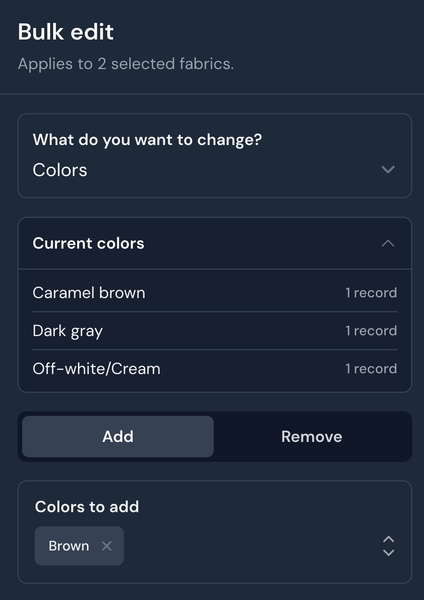
Example: adding or removing colors In my fabric stash, I've selected two fabrics that I'd like to add the color Brown to. I choose Colors for what I want to change. Below this option, I can click Current colors to see what colors the fabrics currently have. This is collapsed by default, but you can click it to double check what attributes are currently set.
For most things you'd like to bulk edit, you can choose between adding and removing something. In the first example, I'd like to add a new color to both fabrics, so I choose Brown in Colors to add. Once I'm happy with my choices, I'll click the 'Apply changes' button at the bottom of the screen.
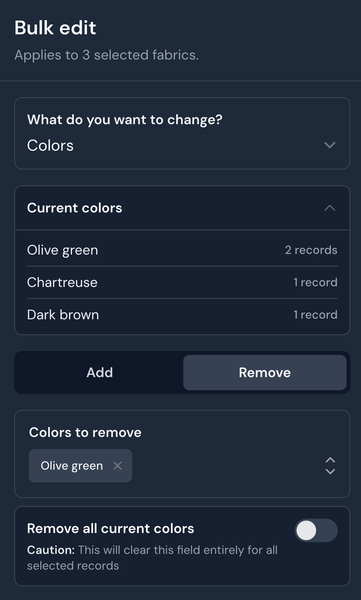
The process is very similar if I want to remove a color, except then I'll choose the "Remove" tab. Here, you also get the option to remove all colors at once. If you toggle this option, all colors will be removed from your selected fabrics.
Example 1: Adding the color 'Brown' to two fabrics
Example 2: Removing the color 'Olive green' from selected fabrics