Pattern database
Using search and filters
To get the most out of the Threadloop pattern database, you should get familiar with the search, filter and sort options.
New filters and options are added quite often, so this won't be a complete guide to everything, but it should give you a good understanding of how it works.
Basic overview of features
On desktop, you will have your search and filters on the left side of the screen, and the sort options and the main pattern results on the right side. It's pretty similar on mobile, however most of the filters will be hidden from view by default. You can see and apply the filters on mobile by clicking the Filters button.
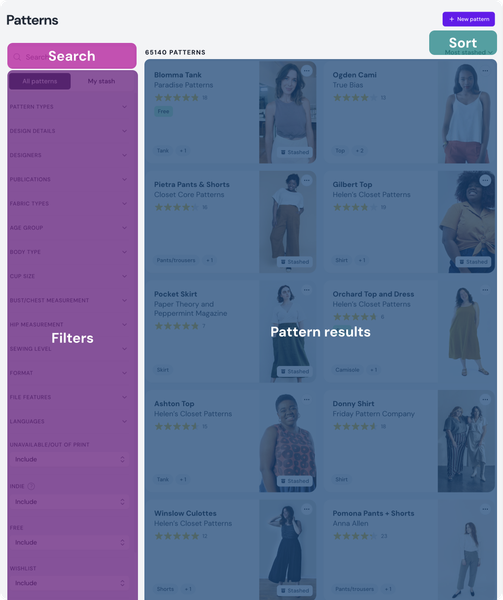
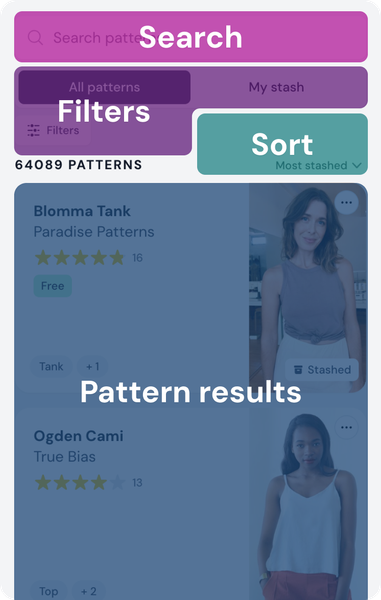
The pattern results will depend on the search, filters and sort options you have chosen. The most important filter is probably the All patterns/My stash tabs. This is pretty self explanatory, but these allow you to filter the database by the entire database, and just the patterns you personally have in your stash.
The filters are slightly different based on which of these tabs you have chosen, because you will get a few more options to filter your stash by (for example tags).
Detail view and gallery view
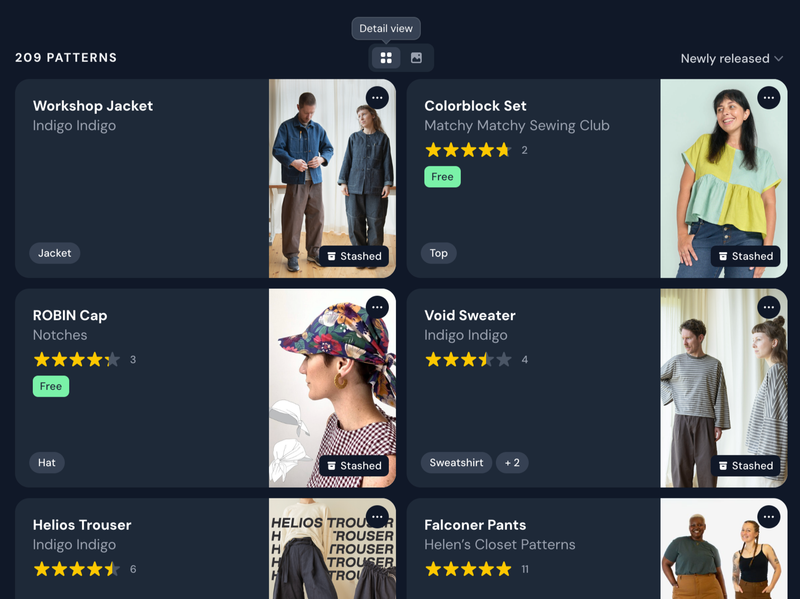
There are two different ways you can browse patterns on Threadloop. The default one is the detail view; with horizontal cards, including details like star rating, if it's free/new/unavailable, and which types it is (dress, top, etc).
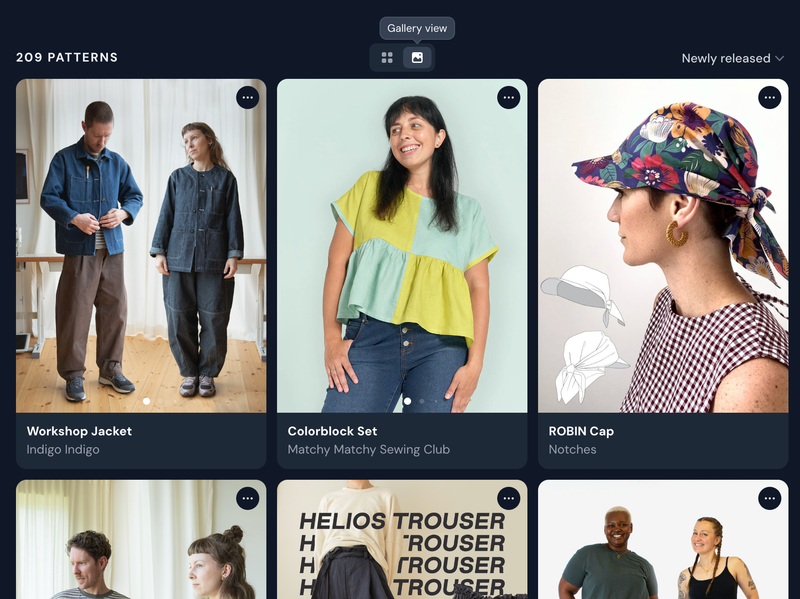
If you want to browse more visually, you can use the gallery view; this includes big photos that you can swipe through, but less details in general so you can have focus on the photos.
You can switch between these views using the buttons at the top of the pattern results.
Text search
The free text search will prioritise search terms that match the name of the pattern or designer, but it will also look for matches in the description, fabric suggestions and other fields.
So you can for example search for "canvas bag" and it will first try to see if there are any patterns with names similar to those words, then it will try to match with the description and pattern types (in this example: bag). Eventually it should also get matches for any patterns that has "canvas" written in the fabric suggestions.
When you do a free text search, we will try to give you the best matches first. Therefore, the sort option is changed to 'Best match' when using text search. You can override this sort option and choose any other, but keep in mind that these will not prioritize the patterns that match your search the best.
When to use filters instead
Sometimes, it can be better to make use of the filters instead of the text search, for more flexibility and more accurate results. The text search is best used for terms that can't be captured by filters.
For example, if you're looking for 'free shirts for men', instead of using the text search, it can be better to apply these filters:
- Pattern types: Tops -> Shirt + Button up
- Age group: Adult
- Body type: Masculine (+ Unisex)
- Free: Only
Filters
There are a lot of filters you can use to find what you're looking for in the database. The best effort has been made to capture them here, but filters are added and updated frequently.
Checkbox filters
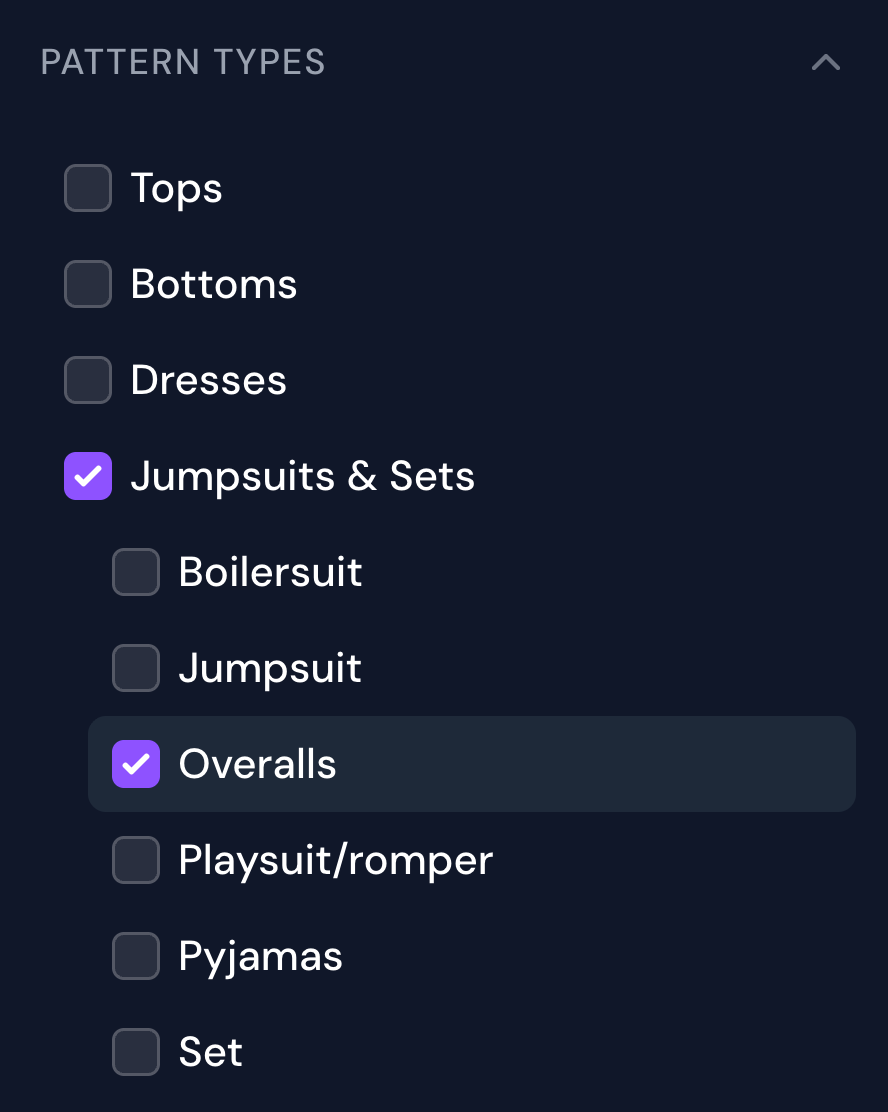
Checkbox filters are multiple select checkboxes. The pattern types filter is slightly different to the rest of them, because it has nesting. This just means that you can either pick the top level group (like Bottoms) and get all results within that group, OR you can be more specific and choose a sub-group within (like Jeans). Many of these filters have a modifier which is explained at the end of this article.
- Pattern types
- Fabric types
- Age group
- Body type
- Cup size
- Sewing level
- Format
- File features
Search box filters
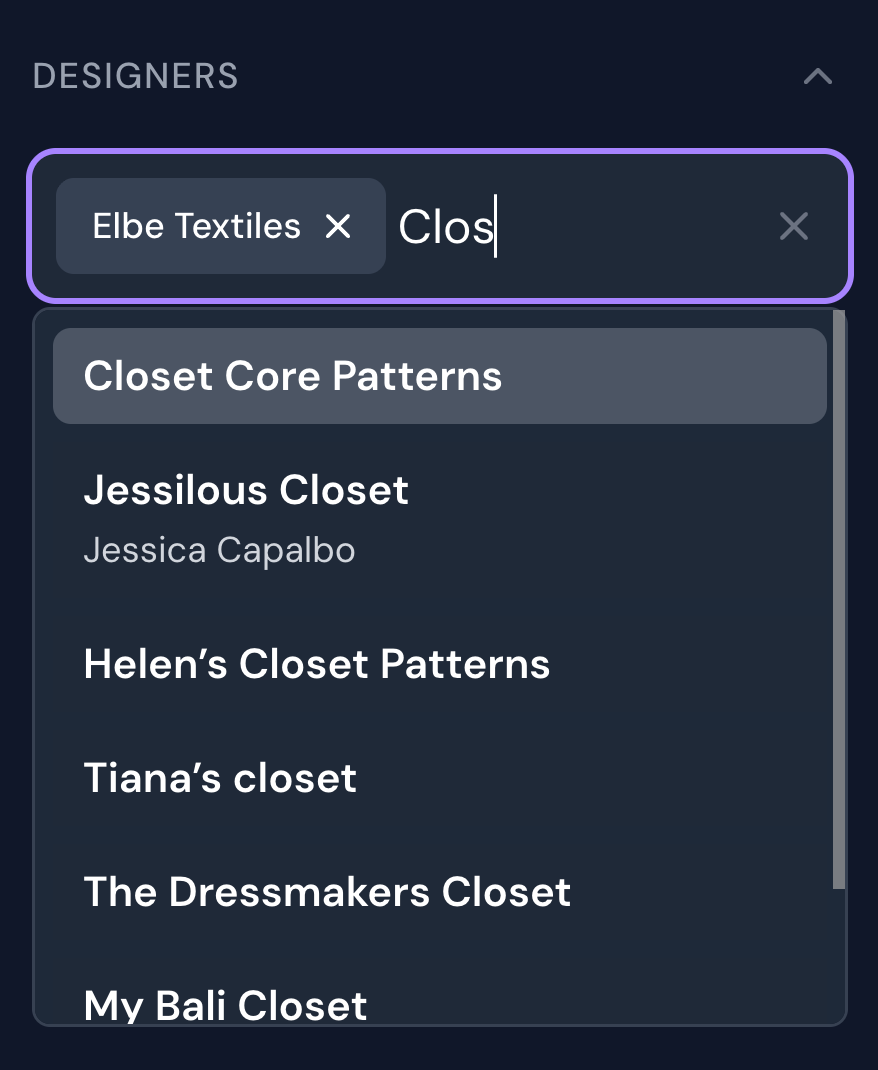
Sometimes, the options are too numerous to just use checkbox filters, so we instead let you search through them with a search box. Here you can do a text based search and choose one or multiple options.
- Design details
- Designers
- Publications
- Languages
Measurement filters
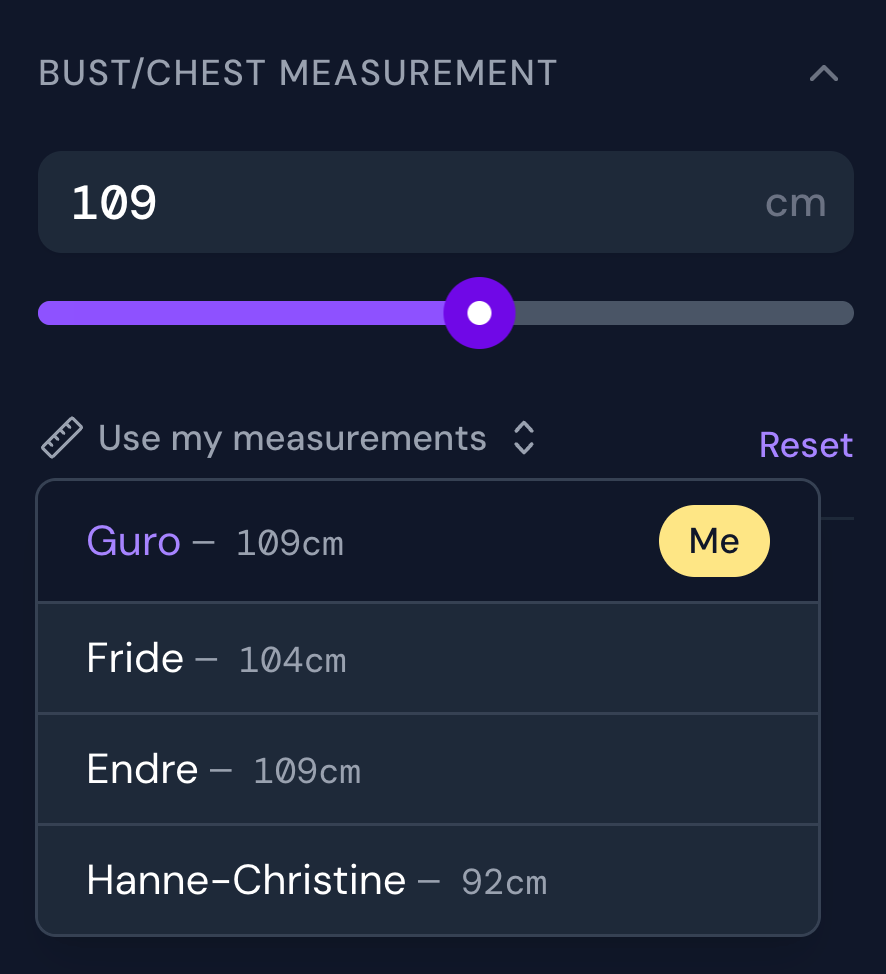
If you want to search the database for patterns that match specific body measurements, you can do this by using the measurement filters. They allow you to set a minimum measurement that the pattern is available in. If you have added your own or other people's measurements in Threadloop, you will be able to pick those measurements instead of manually entering them with the Use my measurements selection.
- Bust/chest measurement
- Hip measurement
Dropdown filters (include/exclude/only)
These filters allow you to easily include, exclude or only see the patterns that match that filter. For example, if you would like see all patterns in your wishlist, you can pick Wishlist -> Only. You can then apply any other filters you want to find something specific in your wishlist.
- Unavailable/out of print
- Indie
- Free
- Wishlist
- My files (my stash) - see which patterns you've added files to or not
Toggle filters
The toggle filters are simple on/off switches, and they do what you'd expect from the name.
- Hide stash
- Hide suspicious
- Hide insensitive
- Hide exclusive
- Only show favorites (my stash)
- Ready to sew (my stash)
- Private (my stash)
- Tags (my stash)
Filter modifiers
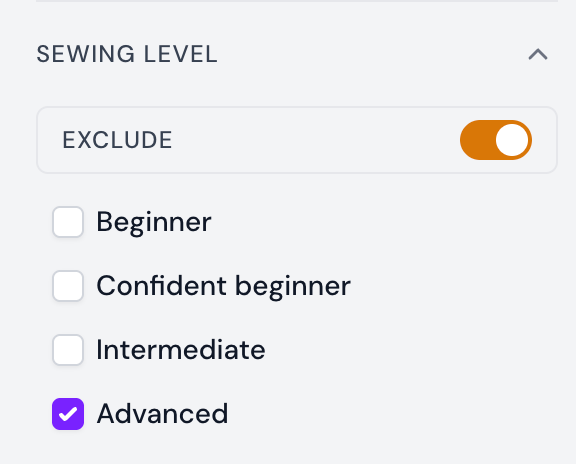
There are two ways you can modify how some of the filters work: exclusion and matching.
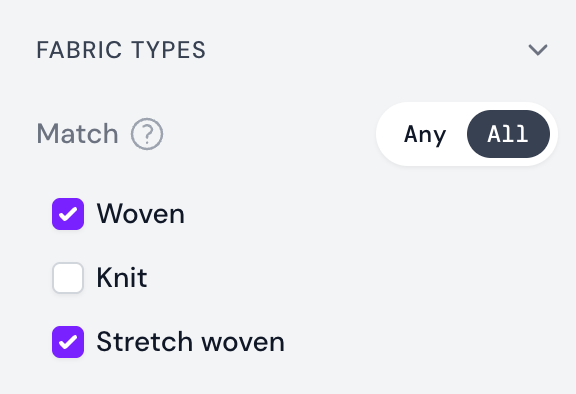
Matching has two options: match any or all options. If you want the results to show you patterns that meet at least one of your options, choose any. But if you want a more specific result, where all options need to match, choose all. In the example below, it will show patterns that indicate that they can be used for both woven and stretch woven fabrics.
Use the exclude toggle to make sure that the results exclude the options selected.
Sorting
You can sort the pattern database by:
- Newly released
- Newly added
- Highest review
- Newly reviewed
- Most wishlisted
- Most stashed
- Most projects
- Name
- Designer
- Random
The random sort limits the result to 1000 items, simply because it would take too much time and processing power to randomly sort and display every pattern in the database.
Tip! If you want a better random pick for your patterns (or project or fabrics) you can use the roulette
Saved searches
✨ Saved searches are a Plus feature
For frequent or complex searches, you can save them for quick access. You can also set a saved search as default to automatically apply every time you enter the pattern search.
You might create a search for patterns for people you sew for, a collection of your stash or a regular quality check of you data. Some examples:
- Indie patterns for me - indie, bust, hip, age group, body type
- No magazines - exclude format
- Midcentury mens - release date, age group, body type, format
- Missing format - exclude format I own
How it works
When you go to the pattern database, you will see a new dropdown below All patterns/My stash called "Saved searches". Here's how it looks:
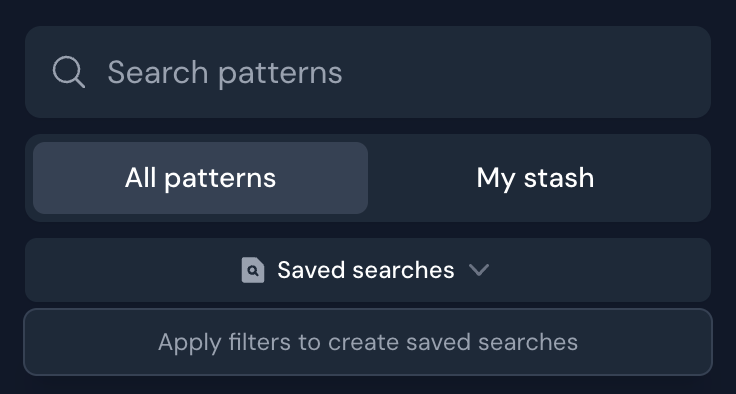
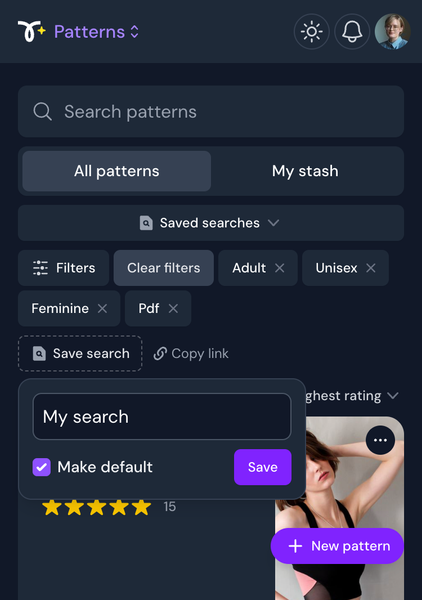
By default, it's empty, so you need to apply some filters first. When you've chosen your preferred filters, click the Save search button (dashed border), and give your search a fitting name; "My search" is a bad example. It should indicate what kind of filters you've applied - for example "No magazines" if you're filtering away magazines. When saving your filter, you get the option to set it as your default. Check it if you want this to be a persistent set of filters that are always applied when you're browsing the pattern database.
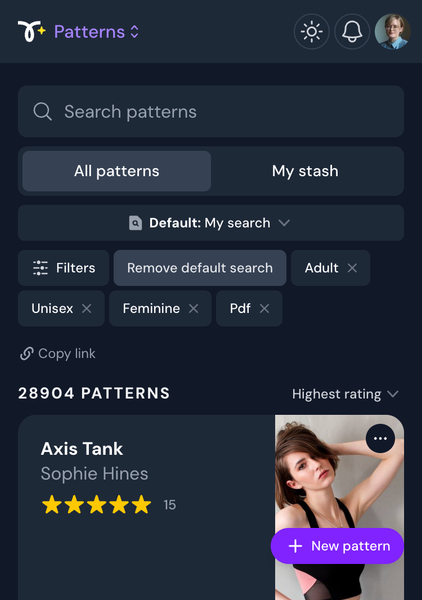
To create a new saved search, you need to remove your default search (unless you want to include all the same filters in your new search) and apply some new filters. When you've created several saved searches, you can pick from them in the dropdown, and manage them by clicking Manage saved searches. Here you can click the name of your search to rename or delete it, drag the handles on the right side to reposition, and click "Set as default" to set it as a default search. The default search will be indicated with a star.
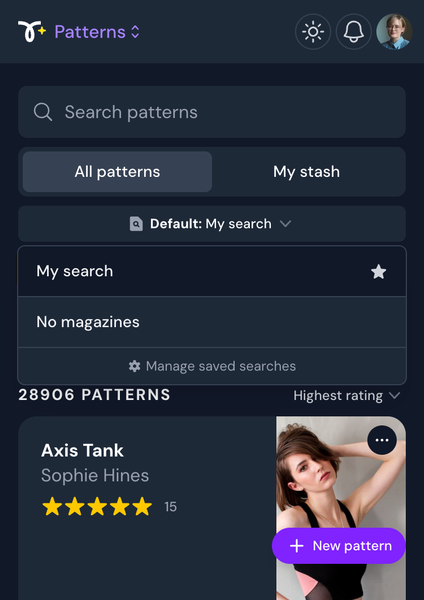
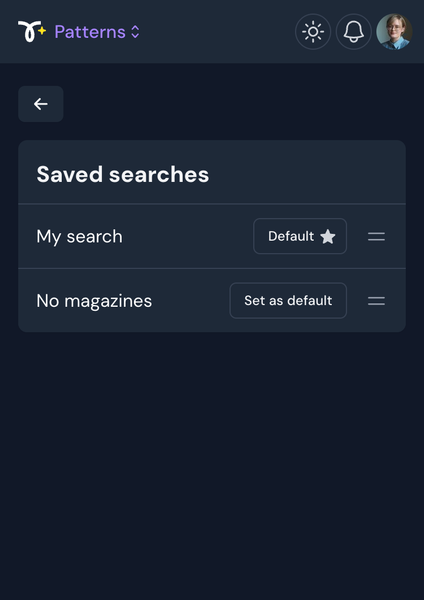
Want to change the filters applied in a saved search? The easiest way is to create a new search with your preferred filters and delete the old one.
For free users, you can use the copy link button under an active filter to save an external bookmark of a search.
List of non-indie patterns
Like previously mentioned, there is a filter to only show indie patterns. What counts as 'indie' is not defined very well, but when you use this filter, we try to hide as many big (and legacy/out of business) companies as possible. This list is not exhaustive, and might at any time be expanded.
This non-indie list now includes these designers:
- Academy Patterns
- Advance
- Alt om Håndarbejde
- Anne Adams
- Australian Home Journal
- Beyer
- Blackmore
- Burda
- Butterick
- Du Barry
- Economy Design
- Excella
- Fashion Patterns
- Fashion Trends
- Grit Pattern Service
- The Prairie Farmer
- Hollywood
- Interweave Stitch Magazine
- Knipkids
- Knipmode
- Knippie
- Know Me Patterns
- Kotiliesi Käsityö
- Kwik Sew
- La Maison Victor
- Ladies Home Journal
- Love Sewing Magazine
- Lutterloh System
- Mail Order Vintage
- Marian Martin
- Maudella Patterns Company
- McCall’s
- Mood Sewciety
- Neue mode
- New Look
- New York
- Ottobre Design
- Paragon
- Patrones
- Pictorial review
- Prima Magazine
- Simplicity
- Simply Sewing
- Spadea
- STIL
- Style
- Suuri Käsityö
- The American Weekly
- Vogue
- Weigel’s
- Weldons
- Woman
- Woman’s Own
- Woman’s Realm
- Woman’s Weekly