When you view a pattern, there is a lot of information to take in! The main page will show the public details as entered in the database, some actions related to your stash (or wishlist) but also all the community and personal resources associated with this pattern.
Public details
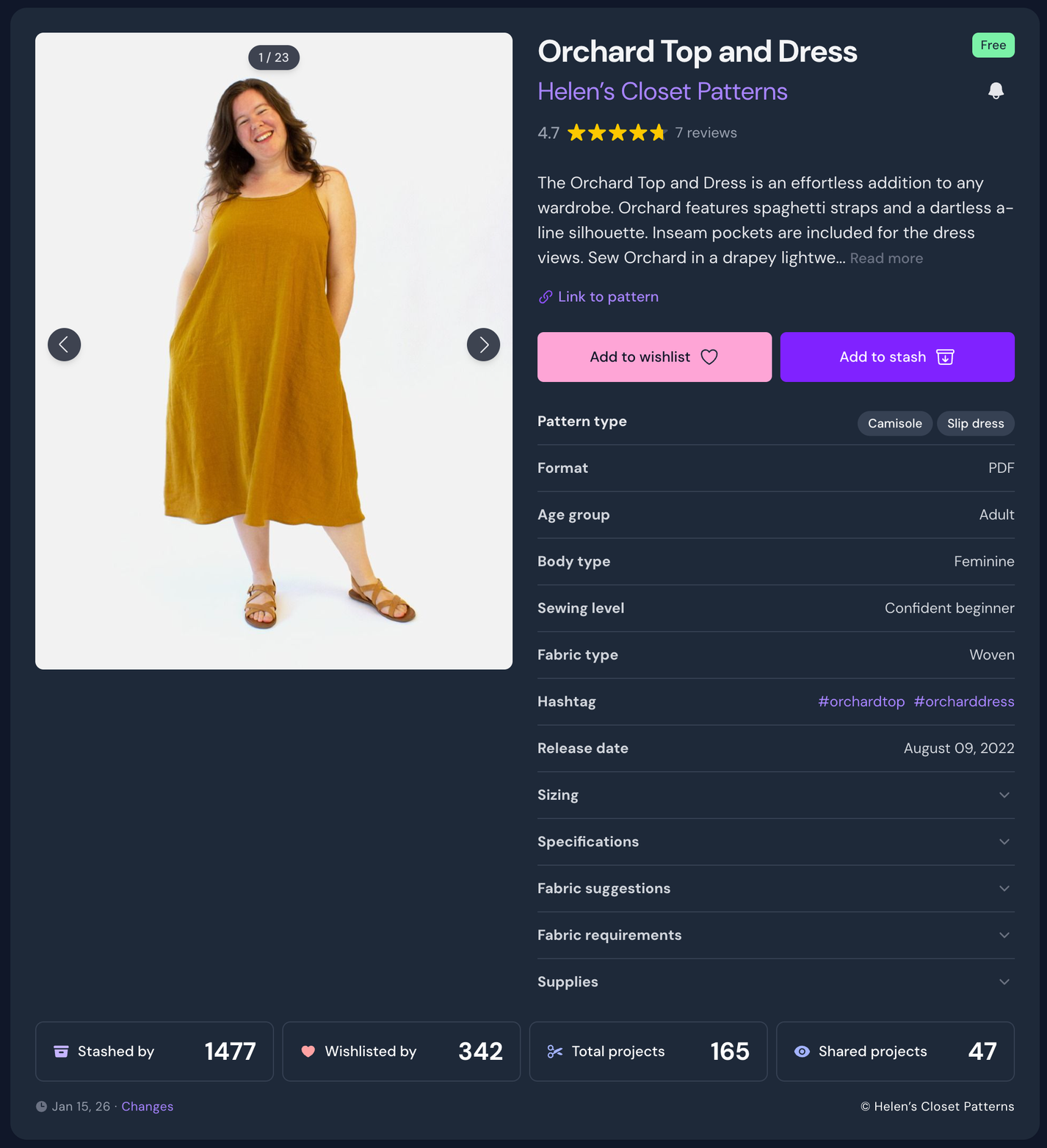
The main page you'll see when viewing a pattern is all the public details, which applies to the entire pattern and not your personal copy. Most of these details should be self-explanatory.
Example: main pattern details on a pattern page
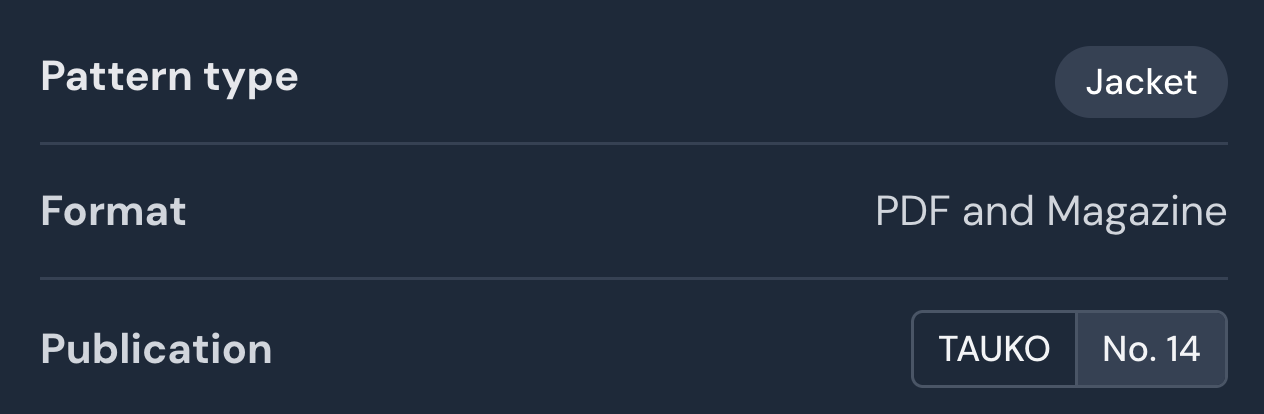
Pattern typeand publication contain clickable buttons to quickly jump to a pattern filter of that parameter.
'Jacket' will show other jacket patterns. 'TAUKO' will show all patterns from that publication, and 'No. 14' will show all patterns in that issue.
Hashtag links to the instagram search for that tag.
Sizing, specifications, fabric suggestions, supplies are collapsed by default. Specifications includes information about file features (A4/print at home, A0/copyshop, projector support, layered sizes, and video instructions), as well as what languages a pattern is available in.
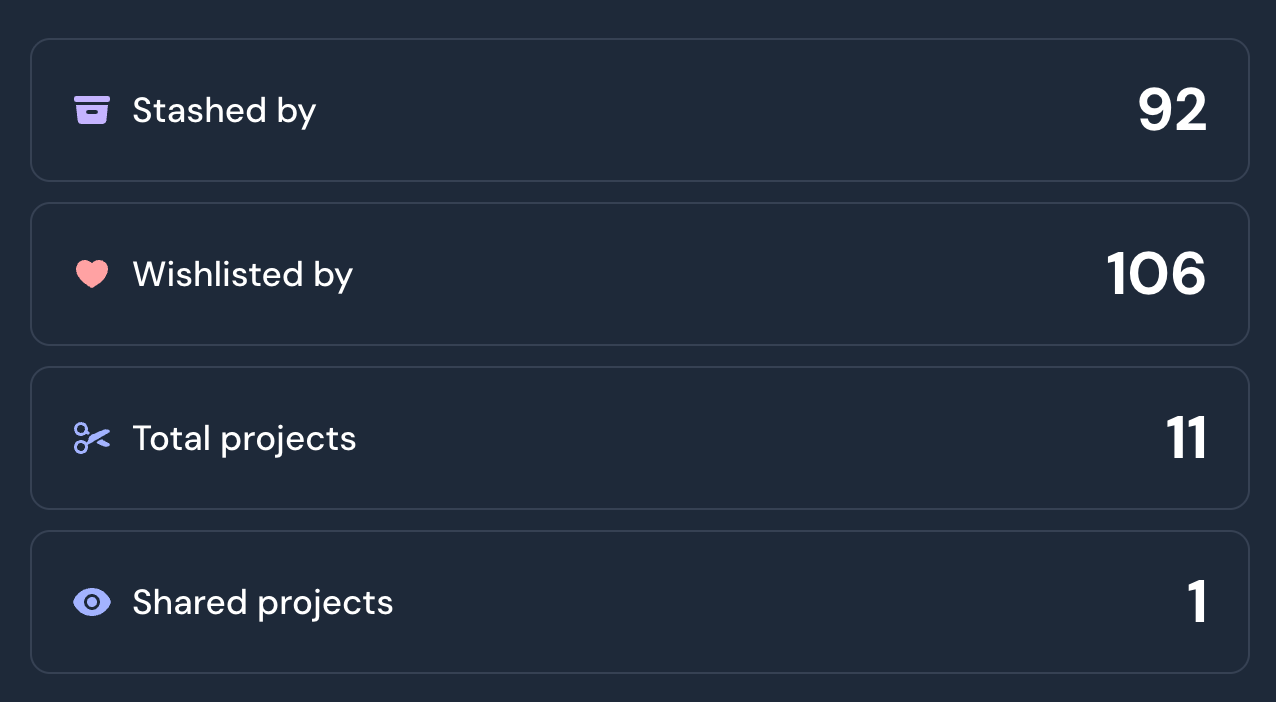
Community stats show the numbers of stashed, wishlists and projects. The total projects includes ideas or unfinished projects that people haven't shared but Shared projects will tell you the number of projects you can see here. You can click Shared projects to see all public projects using that pattern.
Community stats
Actions: stashing and wishlisting
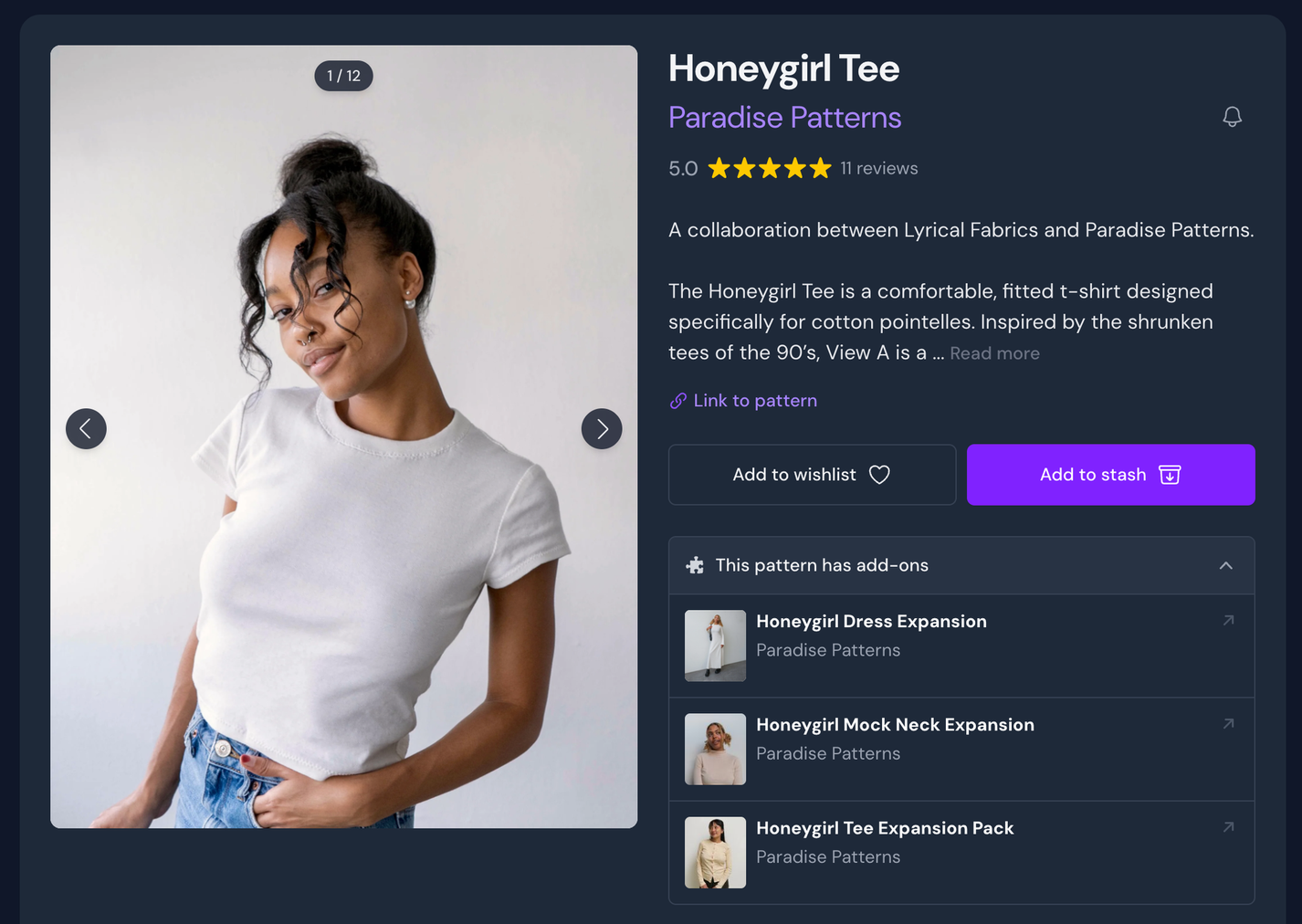
The main actions you can take when visiting a pattern page is to add the pattern to your stash or wishlist. Adding it to your stash means you own or have this pattern.
Two main action buttons on a pattern page
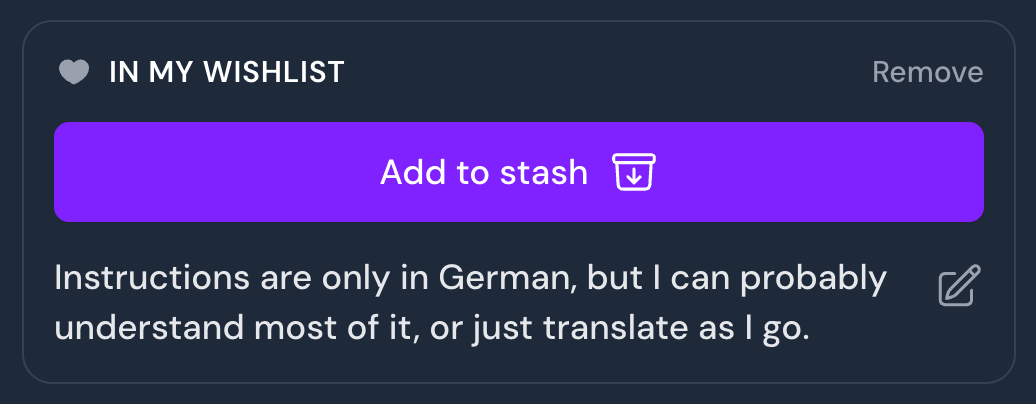
Once you've added a pattern to your wishlist, these buttons will be replaced with an indication that this pattern is in your wishlist, a button to remove it from your wishlist, a big Add to stash button, in addition to a notes field where you can add any thoughts you have about the wishlisted pattern.
The pattern is in my wishlist, and I've added a note
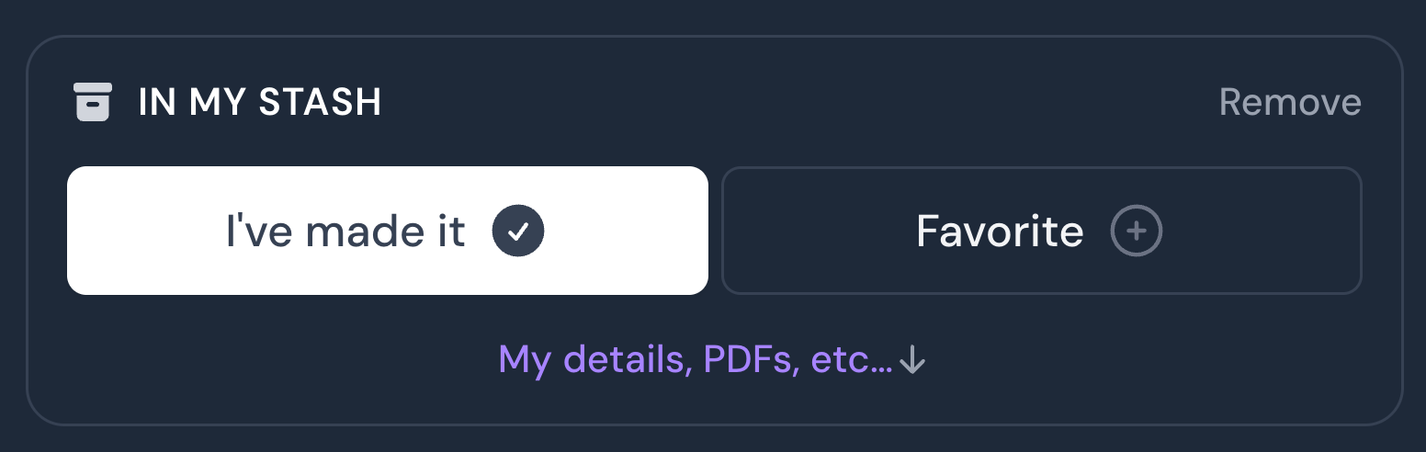
If you add the pattern to your stash, the two buttons will be replaced with an indicator that this pattern is in your stash, a button to remove it from your stash, two buttons to say that you've made something using this pattern + if it's a personal favorite, and lastly, a link to the My details area of this pattern where you can add personal information, files, etc.
The pattern is in my stash, and I've made it
Connected patterns
Sometimes patterns have ties to other patterns, for example a reproduction pattern to it's original, or an add-on that you need a base pattern for. These connections are displayed as an expandable section below the actions
"This pattern has add-ons" - list of all expansion packs
Pattern connections are divided into certain categories:
Add-on Extension to a base pattern
Reproduction Reissue of a vintage pattern
Variant Same design for different ages or genders
Cross-publication Same pattern released in multiple formats
This feature doesn't replace merging identical patterns. If they have been connected instead of merged there is usually a difference or other consideration requiring they are kept separate. These are assessed case-by-case, so if you see a potential duplicate please do report it to be reviewed by the team.
Design details
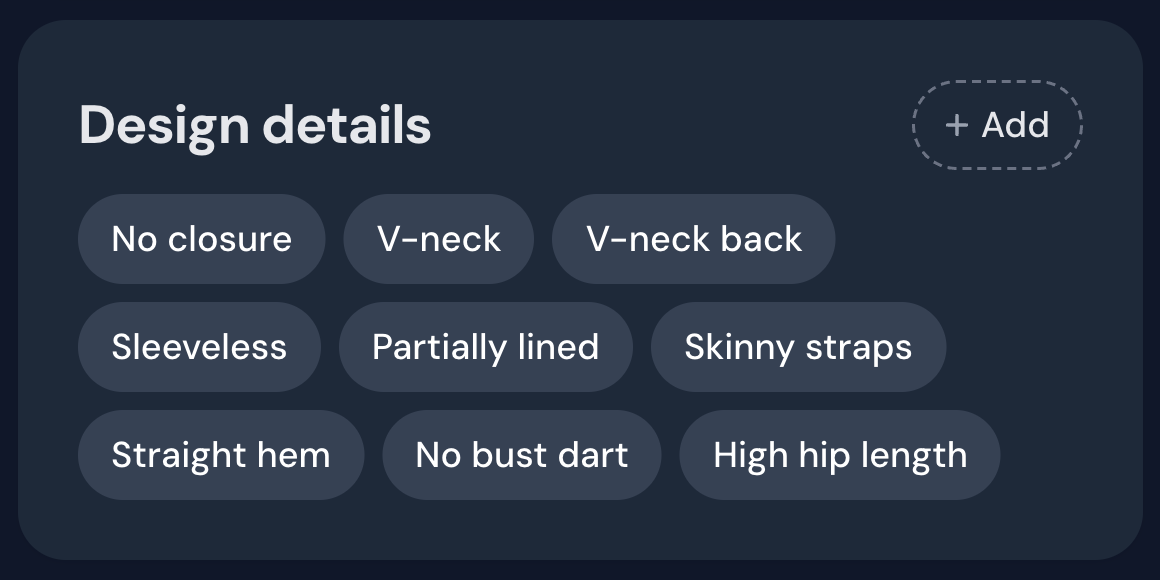
Below the public details are the community-voted design details. These "tags" can be used as filters and are used to describe a huge variety of details such as intended fit, hem length, closure types, bust shaping, silhouettes, occasion, decorative elements, and more.
If you have the time and opportunity, adding these details to a pattern will help the database be better for everyone. These follow a vote mechanism, so even if a pattern already contains details you can help by voting them up.
Community and resource tabs
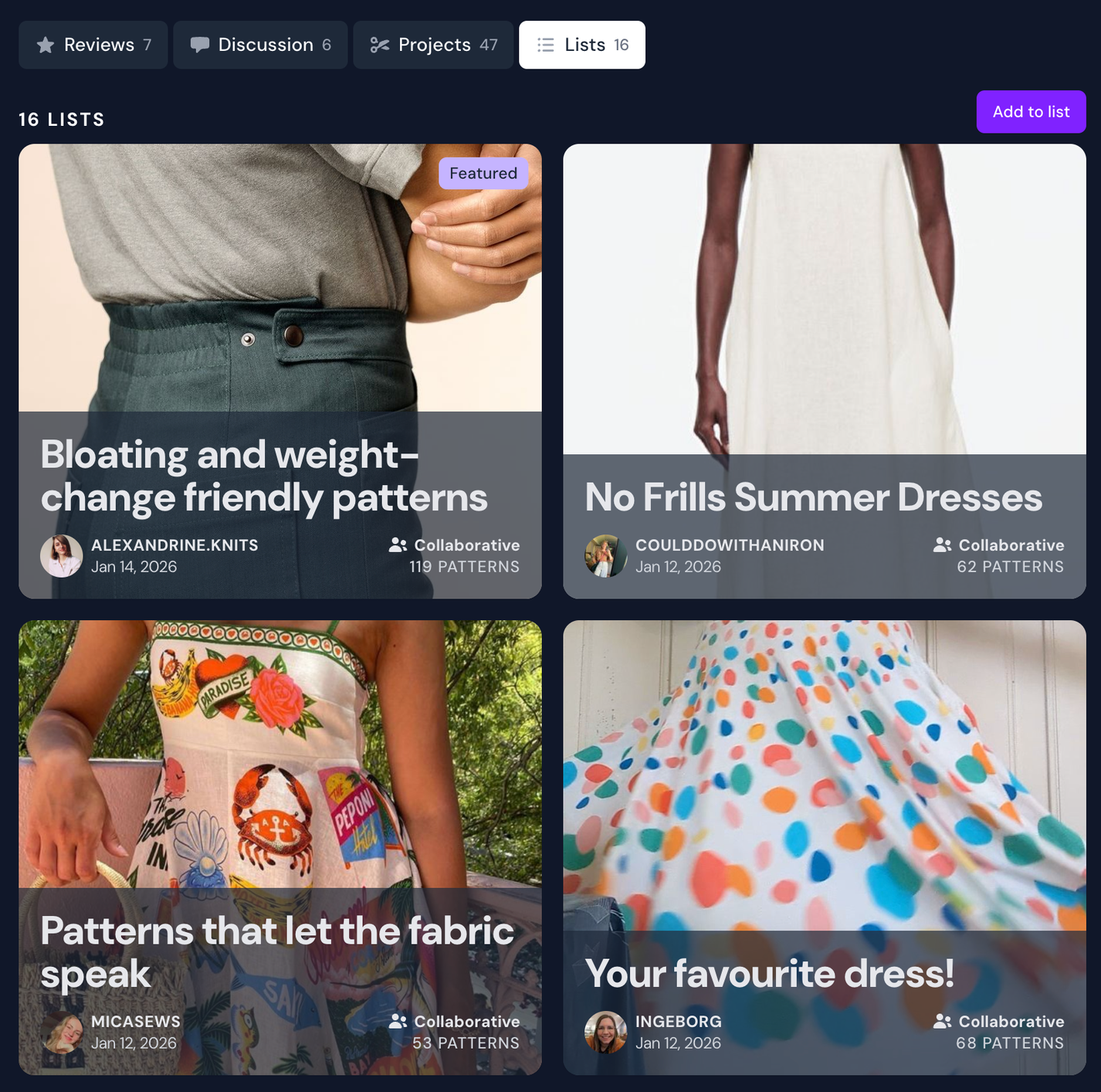
Below the main public pattern information and design details, you will find a row of buttons for all community-shared and linked resources related to the pattern. This includes things like reviews, discussions, projects and lists.
If you have stashed the pattern, the first tab is My details. If you have not stashed the pattern, the first tab is Reviews.
My details
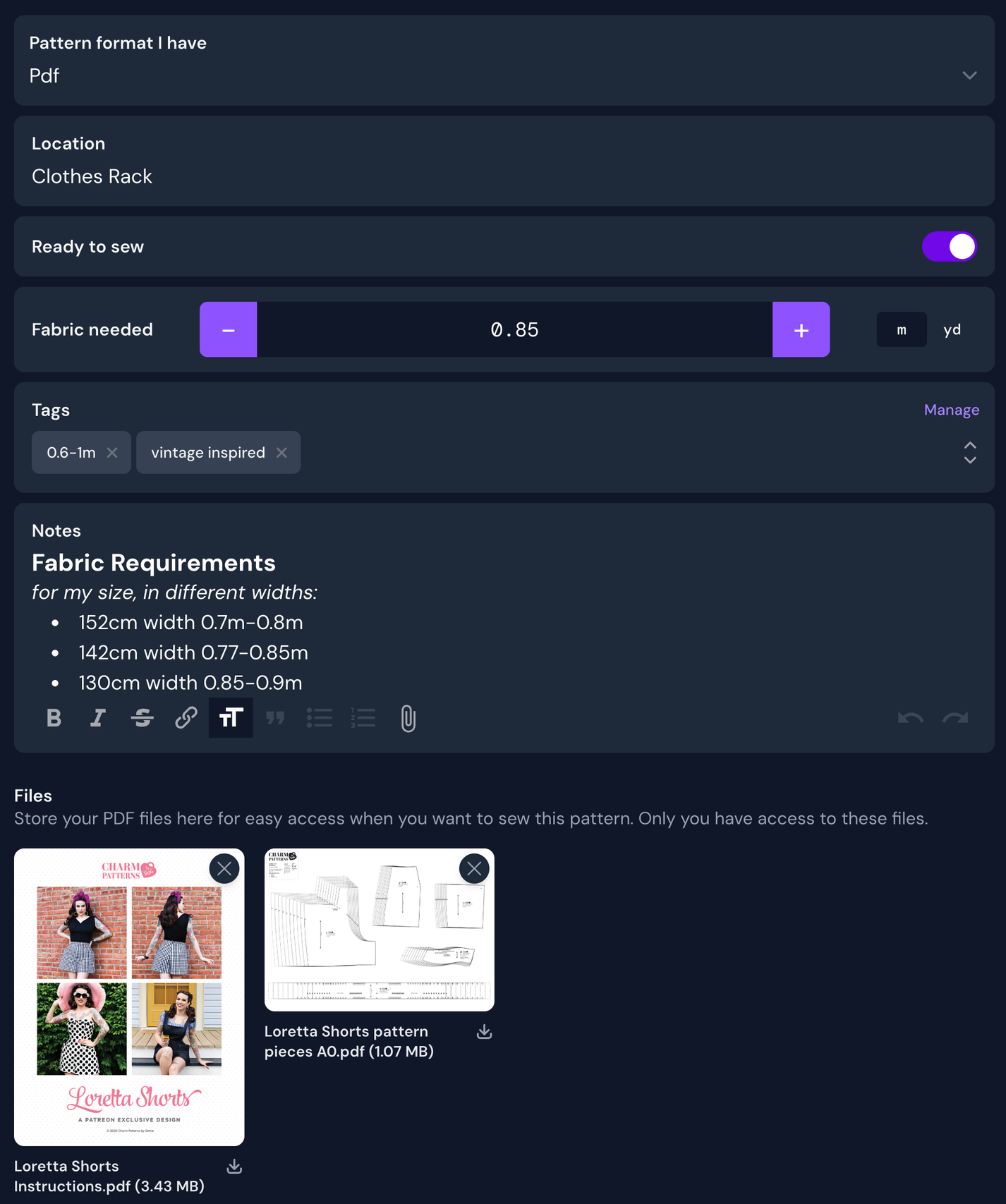
Once you have stashed a pattern, you get a new my details tab below the main pattern details. This is your own personal area where you can add notes, tags and other information only visible to you, as well as add PDF files (a Plus feature).
Pattern format I have Select the format of pattern you own. You can select formats that aren't ticked in the public pattern as well. This can be filtered on to easily find your pdf patterns, for example.
Location A note about where this pattern is stored.
Ready to sew This toggle can mean whatever you like and can be filtered upon. Some common interpretations is for patterns you've prepared, printed, traced, adjusted.
Fabric needed A number field to note what your fabric requirements are. This cannot be filtered on, it's just a note.
Tags Any other attribute or information you want to filter on can be handled with tags! Common use cases include a "printed" tag, "petite" or "tall", "vintage original", "spring/summer" or anything else you can think of. The purple manage button can be used to rename or delete tags.
Notes A rich text field of notes to capture whatever you like. Being rich text, you have the full range of headings, lists, links and even image attachments to format your notes.
Files ✨ For Plus members, you can upload and access PDFs here.
Reviews
Reviews will be the default tab when viewing a public pattern that you do not have stashed. Here you'll find reviews from the community and their linked projects (if available), as well as a summary of the attributes reviewers have given their reviews. Read more about reviewing patterns here.
Discussion
For every pattern in our database, there is a pattern discussion. If you have a question, important information, or helpful links to additional resources related to the pattern (such as video tutorials, sewalongs or pattern hacks), you can add this as a comment in the pattern discussion.
The projects tab will display all your projects using this pattern, and below this; every shared project by the community.
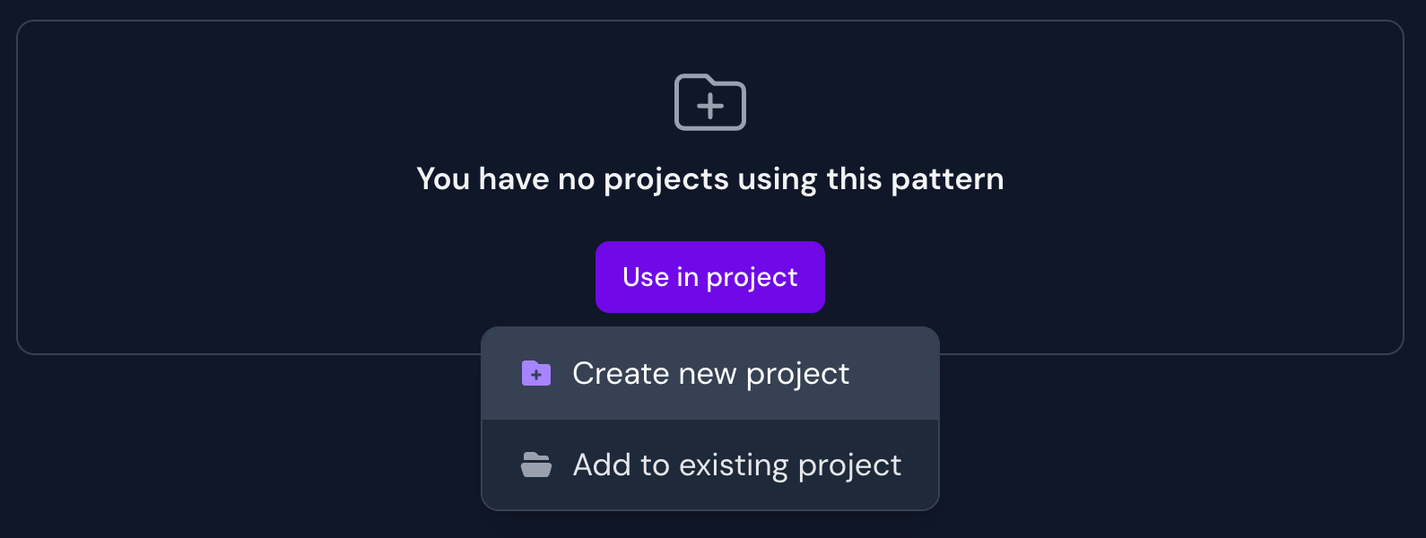
If you have not made any projects using the pattern, you will instead see this call to action to use the pattern in a project. From here, you can create a brand new project or add the pattern to an existing project.